
Town Tech · Call or text 863-288-0123 · 217 Main Street, Auburndale, FL 33823
How to Send an Attachment in an Email (Gmail, Outlook and Phone)
Attach a picture or document to an email in Gmail, Outlook, or from your phone, step by step.
What is an attachment? It is a picture or document that travels along with your email, like a paper clipped to a letter. Most email programs show a paperclip icon for it.
Jump to: Gmail on a computer Outlook Phone or tablet Good to know
Gmail on a computer (mail.google.com)
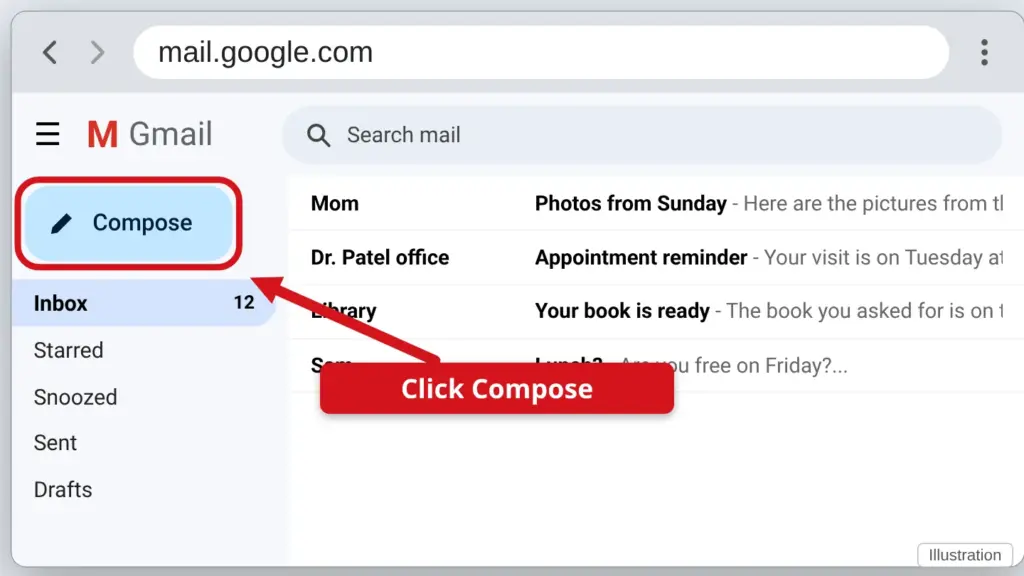
- Click Compose. It is the button at the top left of Gmail. A blank message opens at the bottom right.
- Fill in who it is for. Type the email address in To, a short subject, and your message.
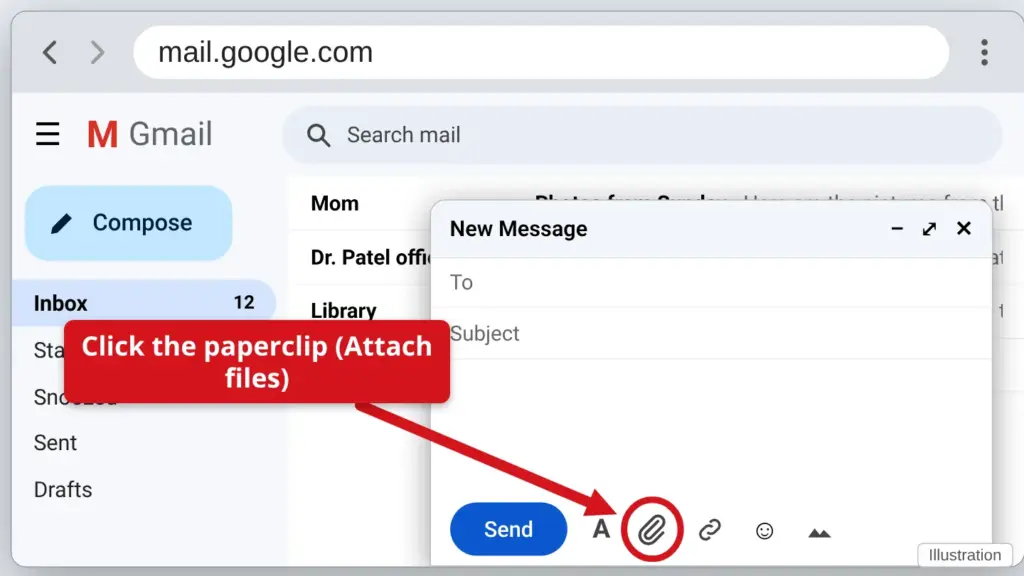
- Click the paperclip. It is in the row of icons at the bottom of the message. If you hover over it, it says Attach files.
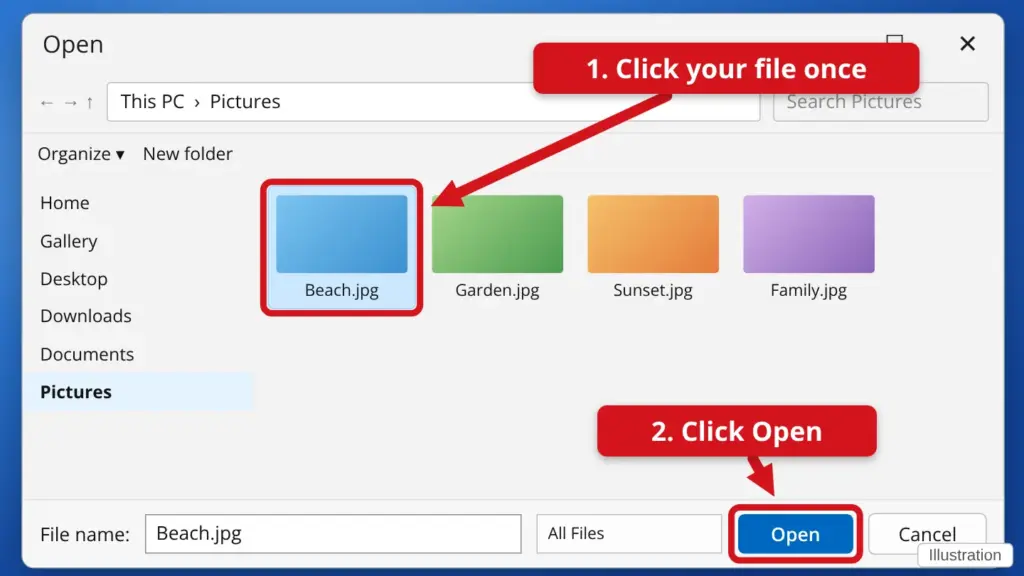
- Find your file and click Open. A window opens. Pictures are usually in Pictures; downloaded files are in Downloads. Click the file once, then click Open. To pick several files at once, hold the Ctrl key while you click each one.
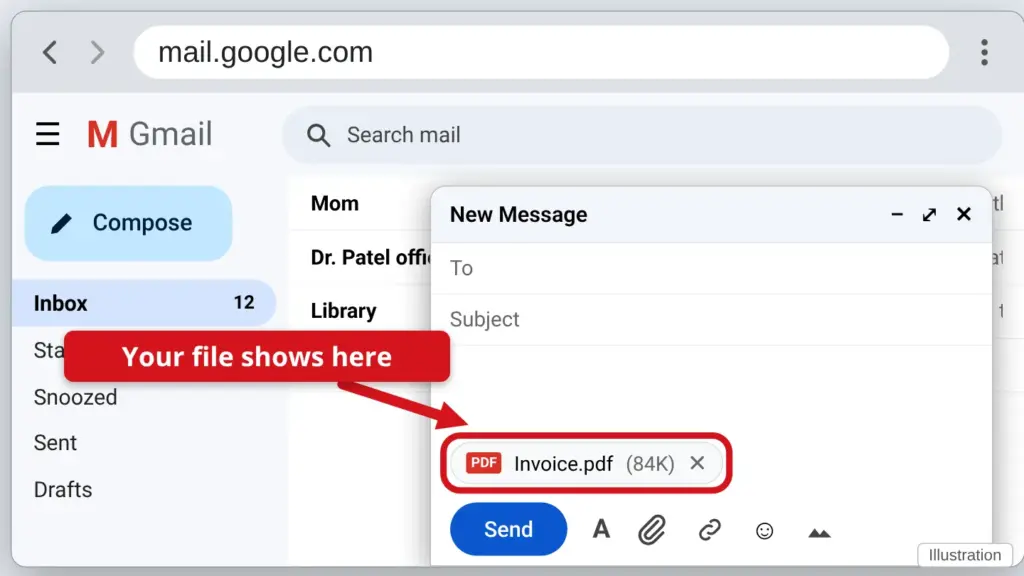
- Wait for the file name to appear. The file shows at the bottom of your message. Wait until the little progress circle finishes before you send.
- Click Send. Your friend will see the paperclip on your email.
Outlook (the app on your computer, or outlook.com)
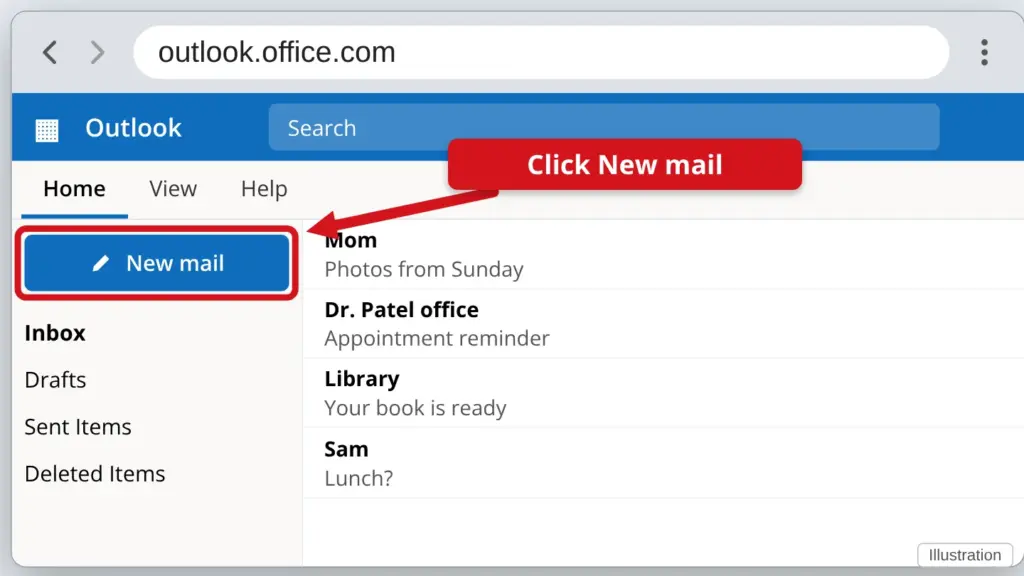
- Click New mail. It is at the top left.
- Type the address, subject and message.
- Click Attach File. Look on the Message tab (or the Insert tab) for a paperclip button named Attach File. In the newer Outlook it is a paperclip at the top of the message window.
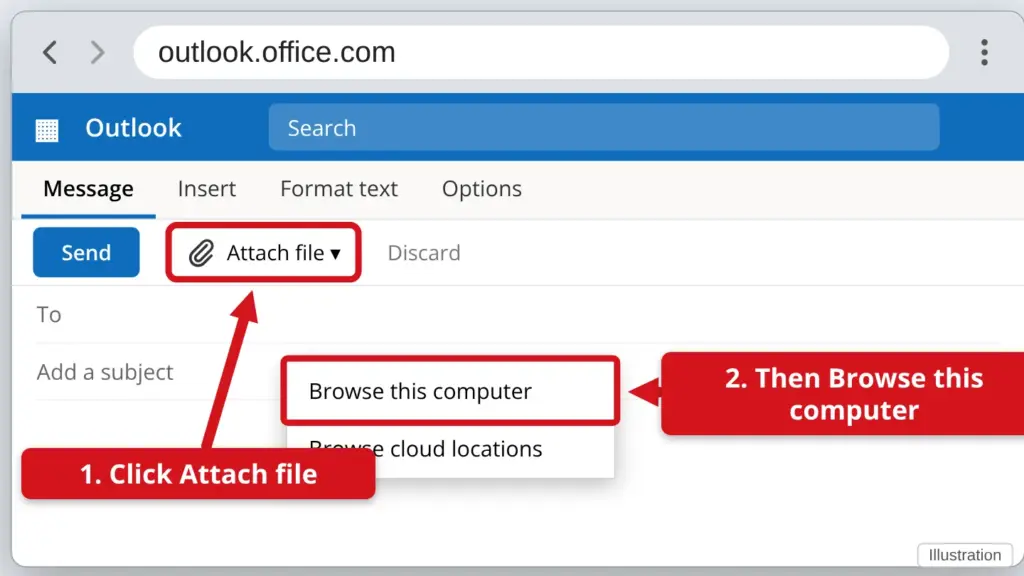
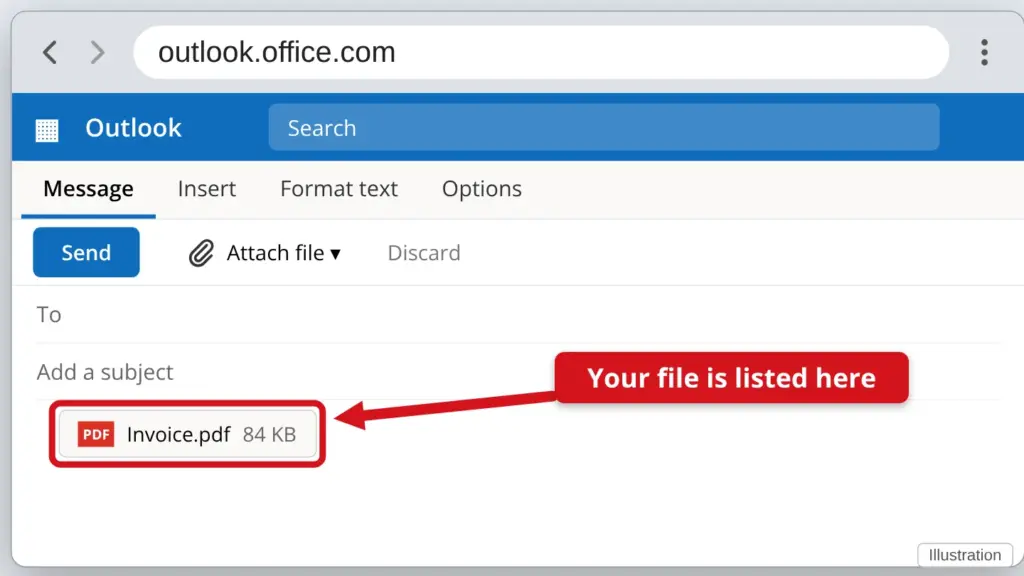
- Choose Browse this computer, pick your file, and click Open. Older versions of Outlook call it Browse This PC. The file name shows under the subject line.
- Click Send.
On a phone or tablet
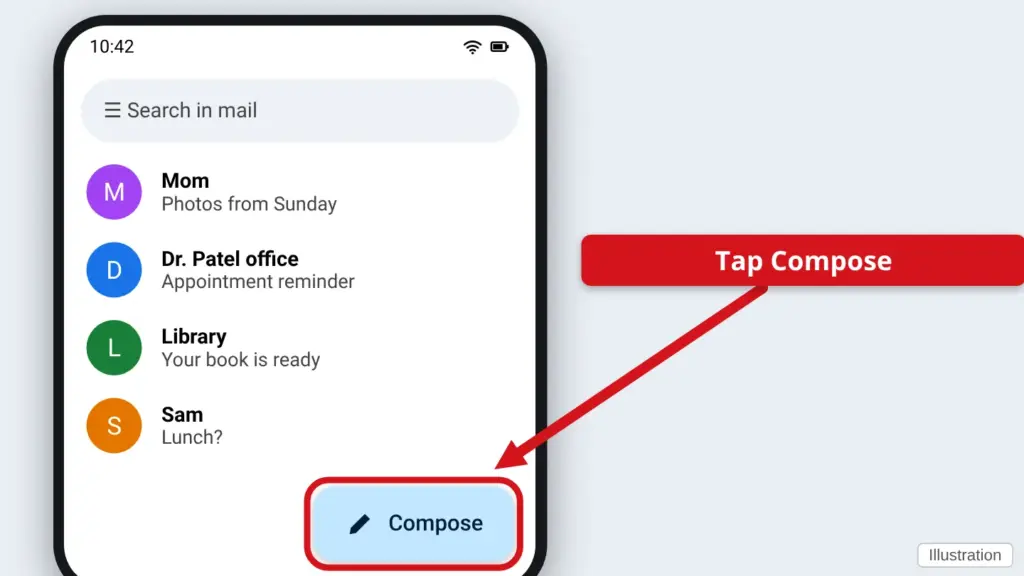
- Open your email app and start a new message. In the Gmail app, tap Compose. In the iPhone Mail app, tap the square-and-pencil icon.
- Type who it is for, the subject and your message.
- Add the file. Gmail app: tap the paperclip at the top of the message, then Attach file, and pick it. iPhone Mail: tap inside the message, then tap the picture icon (for photos) or the document icon (for files) in the row above the keyboard. If you do not see it, tap and hold in the message and choose Insert Photo or Video or Add Document. The wording can differ slightly on your phone.
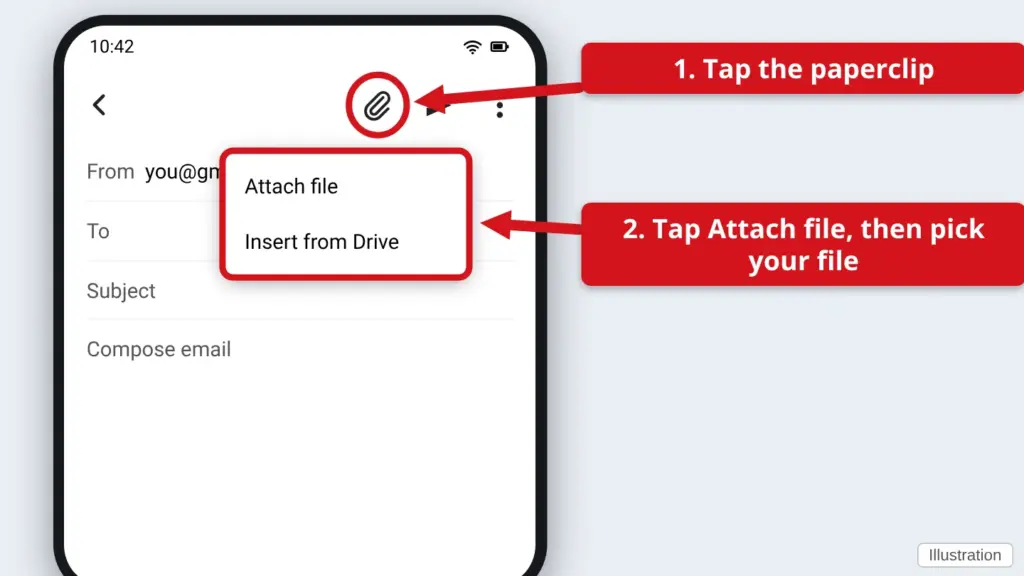
- Tap the paper-airplane Send button.
Easiest way to email a picture from your phone: open the Photos app, tap the picture, tap the Share button, and choose Mail or Gmail. It attaches the picture for you.
Good to know
- Size limit. Most email accounts cannot send more than about 25 MB at once. A few big videos or many photos can go over. Gmail will offer to send a link instead – that is fine.
- Check before you send. Look for the file name at the bottom of the message. If it is not there, the email has no attachment.
- Be careful opening attachments you receive. If you do not know the sender, or the email was a surprise, do not open it. See How to spot a scam.
Find this guide online: townlearn.com/email-attachment/
Still stuck? Call or text Town Tech: 863-288-0123 (Tue–Fri, 10 AM–4 PM)
Still stuck? Call or text Town Tech: 863-288-0123 (Tue–Fri, 10 AM–4 PM)