
Town Tech · Call or text 863-288-0123 · 217 Main Street, Auburndale, FL 33823
How to change account password
Simple steps with a picture: how to change your account password.
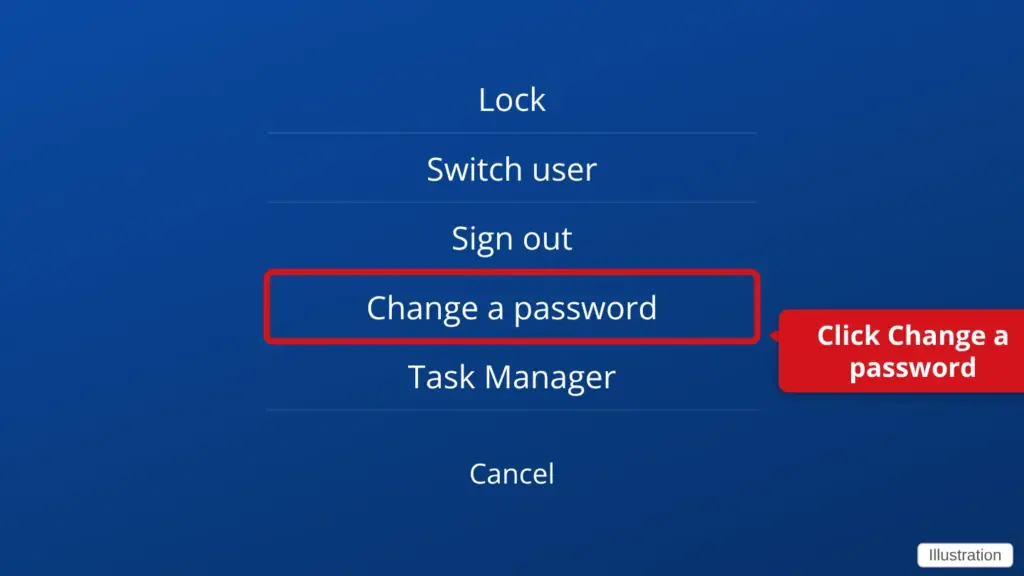
- Hold down Ctrl and Alt, then press Delete. Press all three keys together.
- Click Change a password. This is on the blue screen that appears.
- Type your old password, then your new password twice.
- Press Enter, then click OK. Write the new password down and keep it somewhere safe.
This changes the password for the account you are signed in to.
Stuck? Call or text Town Tech at 863-288-0123. We are happy to help.
Find this guide online: townlearn.com/how-to-change-account-password/
Still stuck? Call or text Town Tech: 863-288-0123 (Tue–Fri, 10 AM–4 PM)
Still stuck? Call or text Town Tech: 863-288-0123 (Tue–Fri, 10 AM–4 PM)