
Town Tech · Call or text 863-288-0123 · 217 Main Street, Auburndale, FL 33823
How to enable cookies in Edge
Simple steps with a picture: how to enable cookies in Edge.
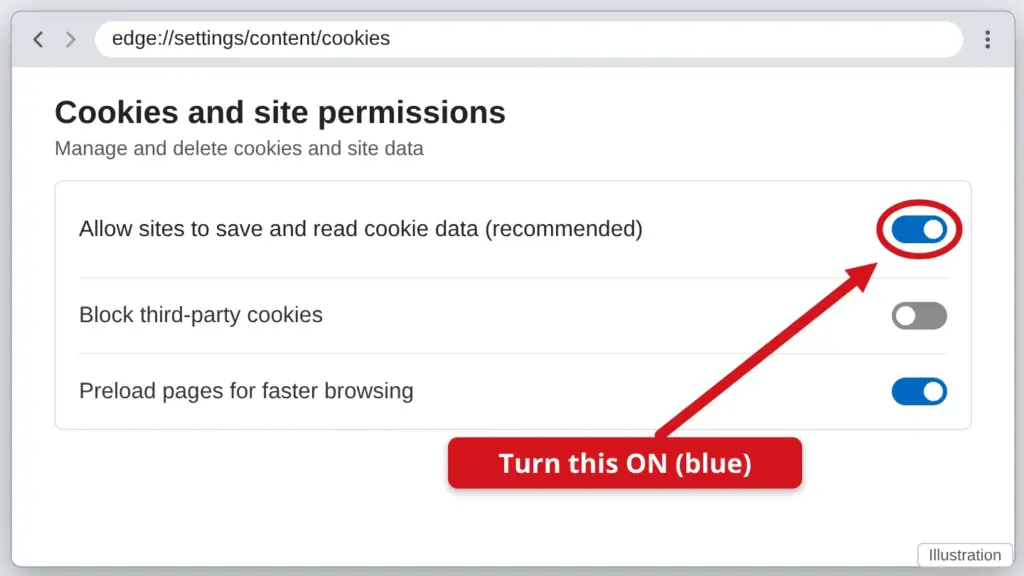
- Click the three dots (…) at the top right, then click Settings.
- Click Cookies and site permissions on the left.
- Click Manage and delete cookies and site data.
- Turn on Allow sites to save and read cookie data (recommended). The switch turns blue when it is on. Then reload the website.
Cookies are small notes a website saves so it remembers you, for example to keep you signed in.
Stuck? Call or text Town Tech at 863-288-0123. We are happy to help.
Find this guide online: townlearn.com/how-to-enable-cookies-in-edge/
Still stuck? Call or text Town Tech: 863-288-0123 (Tue–Fri, 10 AM–4 PM)
Still stuck? Call or text Town Tech: 863-288-0123 (Tue–Fri, 10 AM–4 PM)