
Town Tech · Call or text 863-288-0123 · 217 Main Street, Auburndale, FL 33823
How to make a user account password
Simple steps with a picture: how to make a user account password.
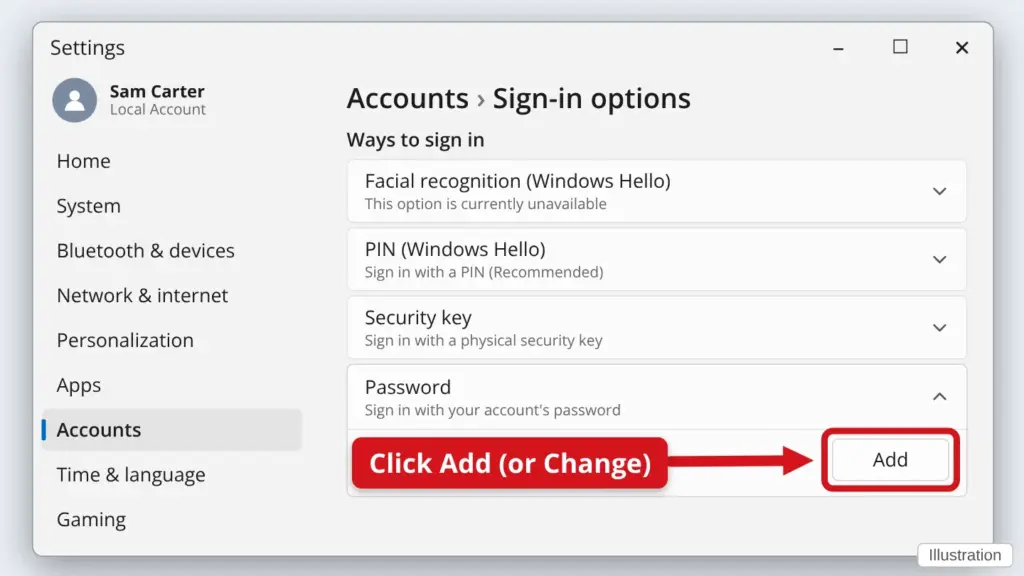
- Click Start, then Settings (the gear), then Accounts.
- Click Sign-in options.
- Click Password to open it, then click Add. If it says Change, your account already has a password.
- Type your new password twice, add a hint only you would understand, then click Next and Finish. Write the password down and keep it somewhere safe.
For every step with pictures, including setting a PIN, see How to reset or add a Windows password or PIN.
Stuck? Call or text Town Tech at 863-288-0123. We are happy to help.
Find this guide online: townlearn.com/how-to-make-a-user-account-password/
Still stuck? Call or text Town Tech: 863-288-0123 (Tue–Fri, 10 AM–4 PM)
Still stuck? Call or text Town Tech: 863-288-0123 (Tue–Fri, 10 AM–4 PM)