
Town Tech · Call or text 863-288-0123 · 217 Main Street, Auburndale, FL 33823
How to start a scan with Norton on taskbar
Simple steps with a picture: how to start a scan with Norton from the taskbar.
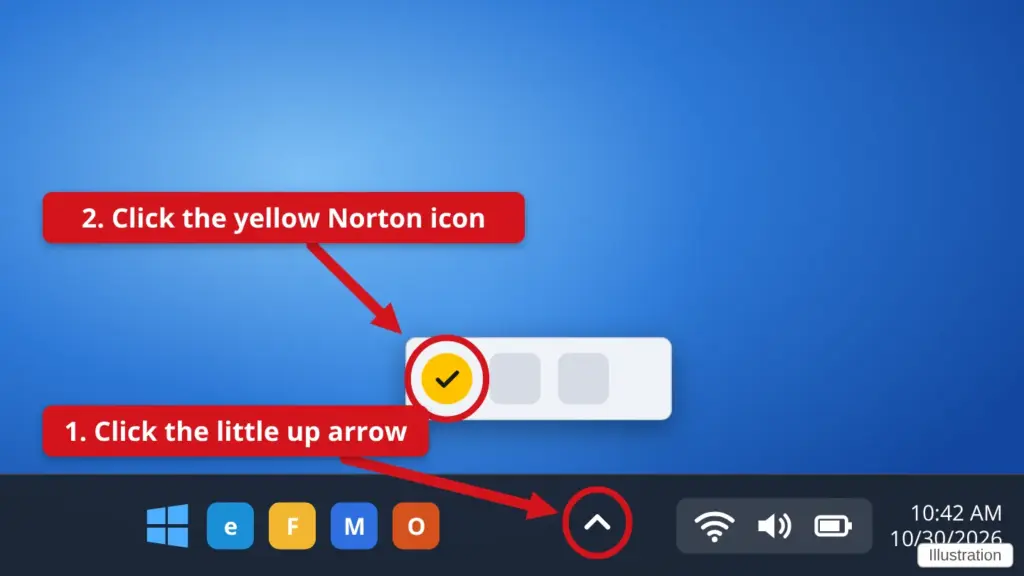
- Look at the bottom-right corner of the screen, next to the clock. Click the small up arrow (^). This shows icons that are hidden.
- Click the yellow Norton icon. If you can already see the Norton icon beside the clock, just click it.
- In the Norton window, click Scans, then Run Quick Scan. If you do not see Scans, click Security first.
- Wait for it to finish. Leave the computer on until Norton says the scan is done.
Norton looks a little different on each computer. If yours does not match this picture, call us and we will walk you through it.
Stuck? Call or text Town Tech at 863-288-0123. We are happy to help.
Find this guide online: townlearn.com/how-to-start-a-scan-with-norton-on-taskbar/
Still stuck? Call or text Town Tech: 863-288-0123 (Tue–Fri, 10 AM–4 PM)
Still stuck? Call or text Town Tech: 863-288-0123 (Tue–Fri, 10 AM–4 PM)