
Town Tech · Call or text 863-288-0123 · 217 Main Street, Auburndale, FL 33823
How to Start a Town Tech Remote Support Session
Step-by-step pictures for letting Town Tech help you from the shop on a Windows computer. Call us first, then follow eight short steps.
Call or text us first: 863-288-0123 (Tuesday–Friday, 10 AM–4 PM). We will stay on the phone with you and give you a code. Only do these steps when you have spoken with us. If someone you do not know calls you and asks you to do this, hang up.
Jump to: Windows computer Android phone or tablet After we are done
On a Windows computer
Open the Town Tech help page
(remote.towntech.com – only after you have called us)
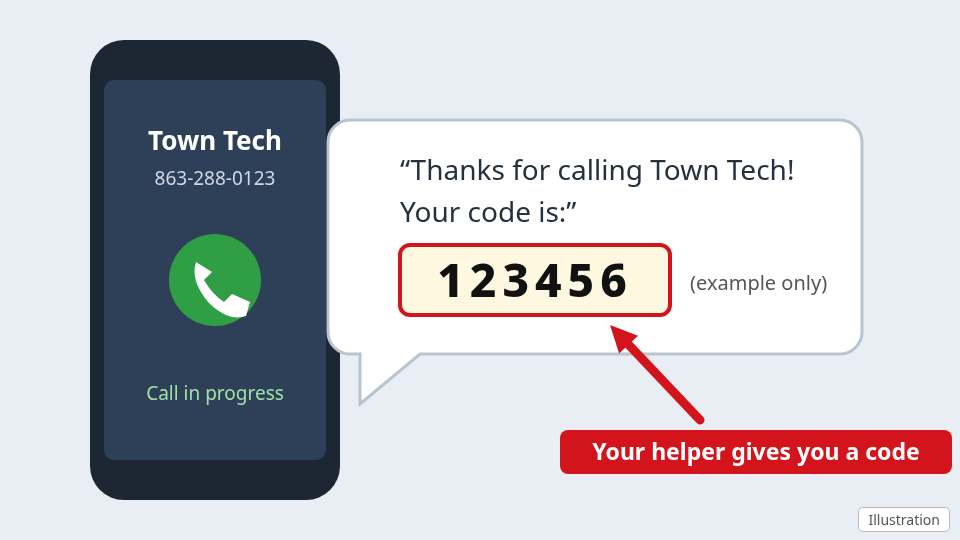
- Call or text us at 863-288-0123. We will give you a short code to type in. Stay on the phone.
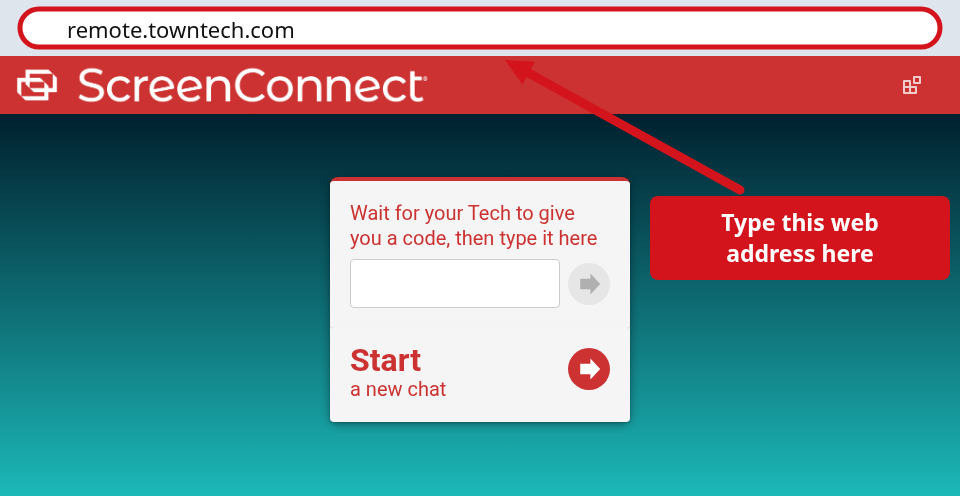
- Go to remote.towntech.com. Type it in the address bar at the top of your web browser and press Enter. Or click the button above.
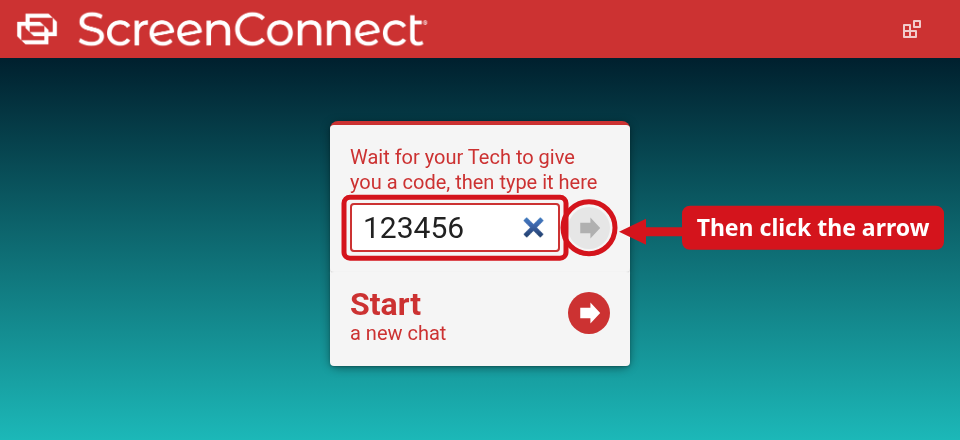
- Type your code and click the arrow. Your Tech will read you a short code over the phone. Type it in the box, then click the arrow. Do not click “Start a new chat.”
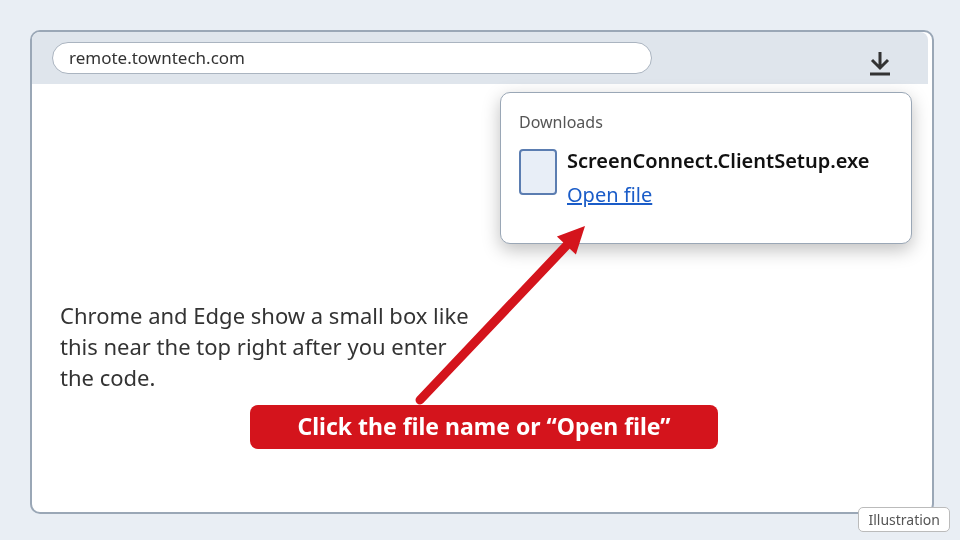
- Open the file that downloads. Your browser will download a small file. Click its name or Open file in the box near the top right (or the bar at the bottom).
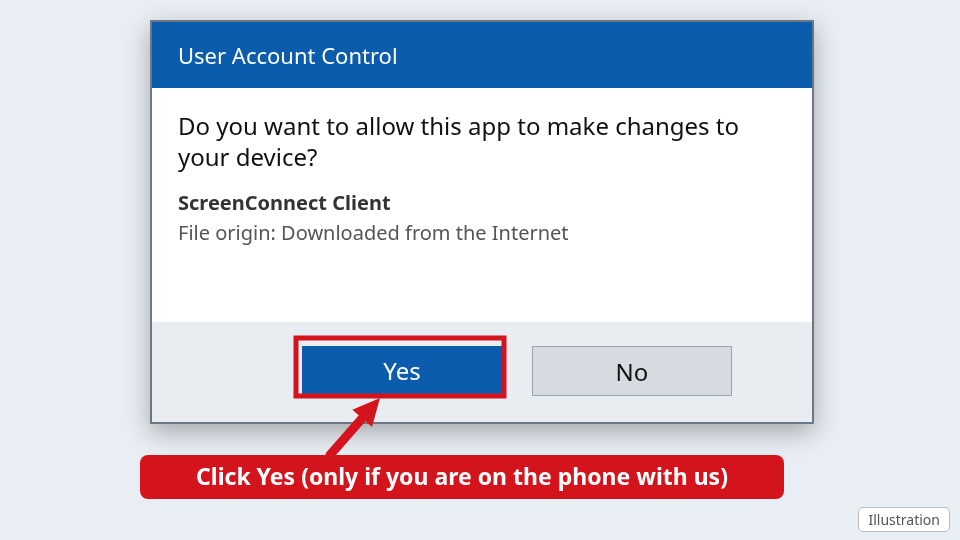
- Click Yes if Windows asks. A box asks Do you want to allow this app to make changes to your device? If you are on the phone with us, click Yes. If you see a blue box that says Windows protected your PC, stop and tell us before you click anything.
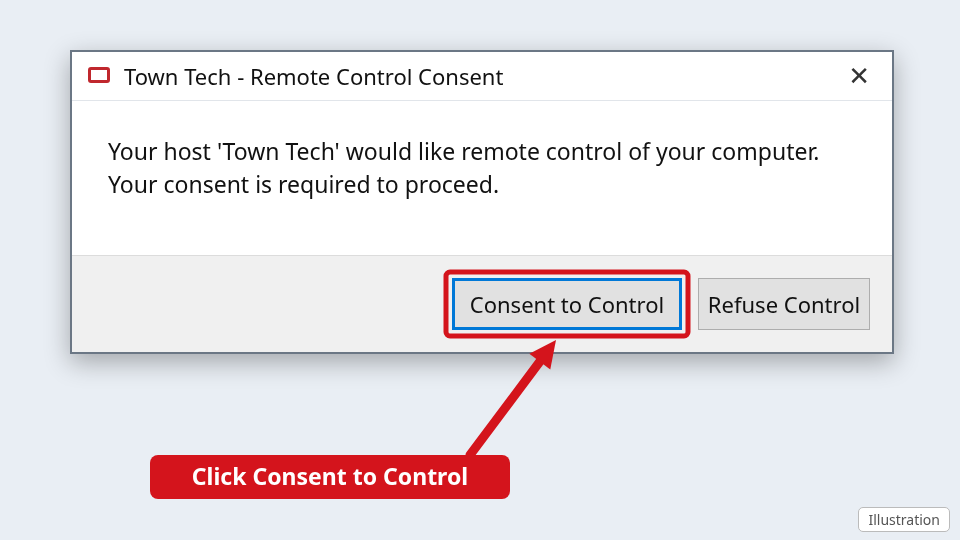
- A box will ask for your permission. Click Consent to Control. A box says Your host ‘Town Tech’ would like remote control of your computer. Click Consent to Control (it may say Allow on some computers) so your Tech can help you. If you see a box to tick, tick it.
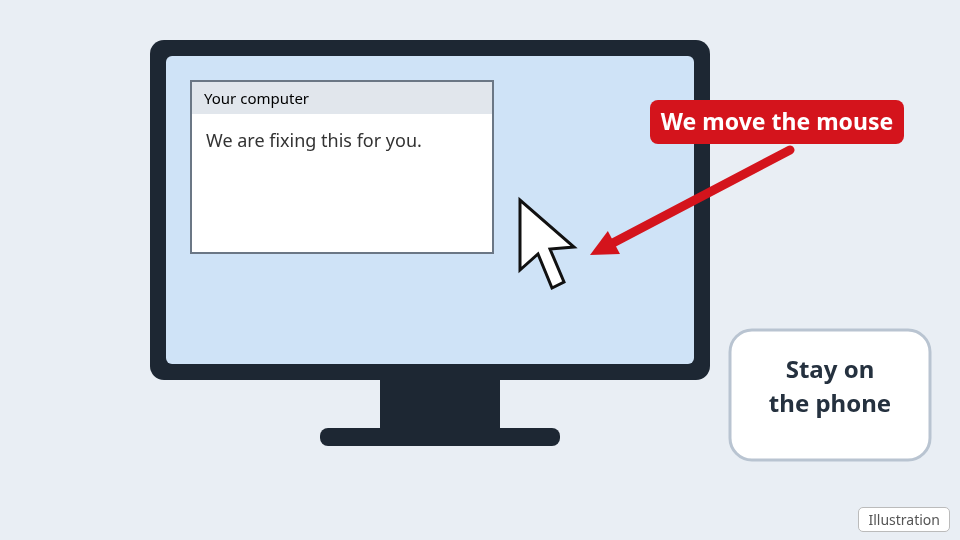
- Stay on the phone while we help. You will see your mouse move on its own. You can watch everything we do. Tell us if you want us to stop at any time.
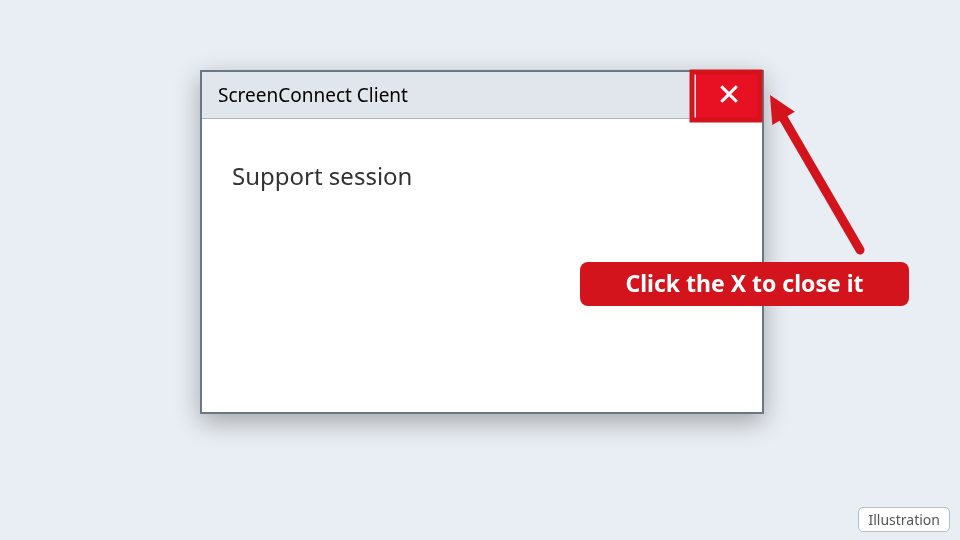
- Close the window when we say we are done. Click the X in the top right corner. We cannot see your computer after it is closed.
Does your screen look different from these pictures? Windows and web browsers change often. That is fine. Stop and call us at 863-288-0123 and we will walk you through it.
On an Android phone or tablet
- Call or text us first. Tell us you would like help from your Android phone or tablet.
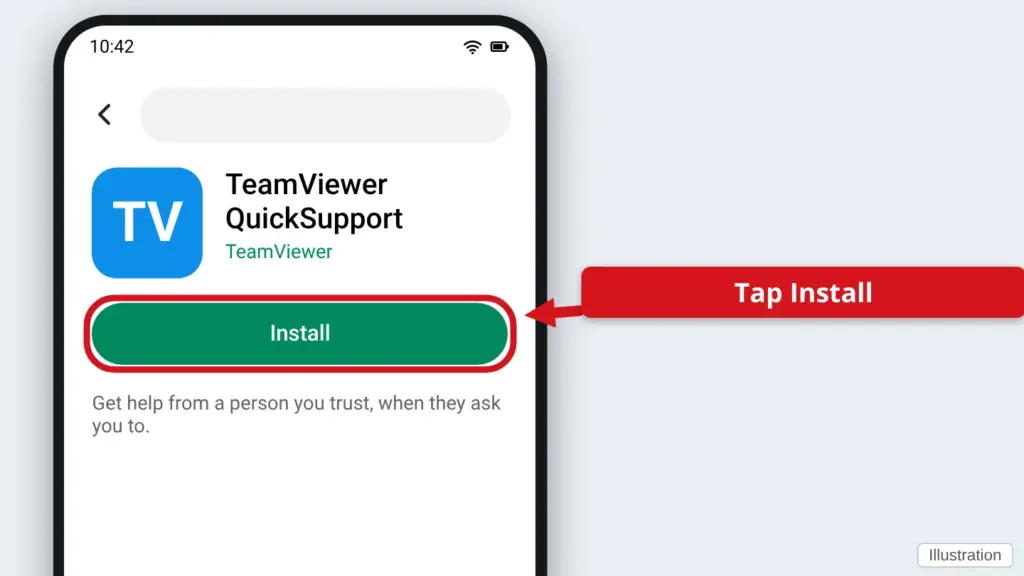
- Install TeamViewer QuickSupport. Tap this link on your phone: TeamViewer QuickSupport on Google Play. Tap Install.
- Open the app and read us the ID. Tap Open. The app shows an ID number. Tell it to us over the phone, and tap Allow when it asks.
After we are done
- When we finish, close the support program window. We cannot see your computer after it is closed.
- You can delete the small file that downloaded. Next time you need us, we will give you a new code.
- Need this on an iPhone or iPad? Call us and we will tell you what is possible.
Find this guide online: townlearn.com/remote-support/
Still stuck? Call or text Town Tech: 863-288-0123 (Tue–Fri, 10 AM–4 PM)
Still stuck? Call or text Town Tech: 863-288-0123 (Tue–Fri, 10 AM–4 PM)