
Town Tech · Call or text 863-288-0123 · 217 Main Street, Auburndale, FL 33823
How to Stop Pop-ups on Your iPhone or Android Phone
Get rid of pop-up ads, fake virus warnings and spam notifications on an iPhone or Android phone.
Important: If a screen says “Your phone has a virus” and shows a phone number, do not call it and do not tap anything on that screen. It is an ad, not a real warning. Close it using the steps below.
Jump to: Close one that is on the screen iPhone Android Ads when you are not in a browser
Close the pop-up that is on your screen now
- Do not tap inside the pop-up. Even the “OK” or “Close” button inside it can lead to more ads.
- Leave the web page. Switch to the list of open pages: on iPhone tap the two-squares icon in the bottom corner of Safari; on Android tap the number or squares icon at the top of Chrome. Then tap the X on that page.
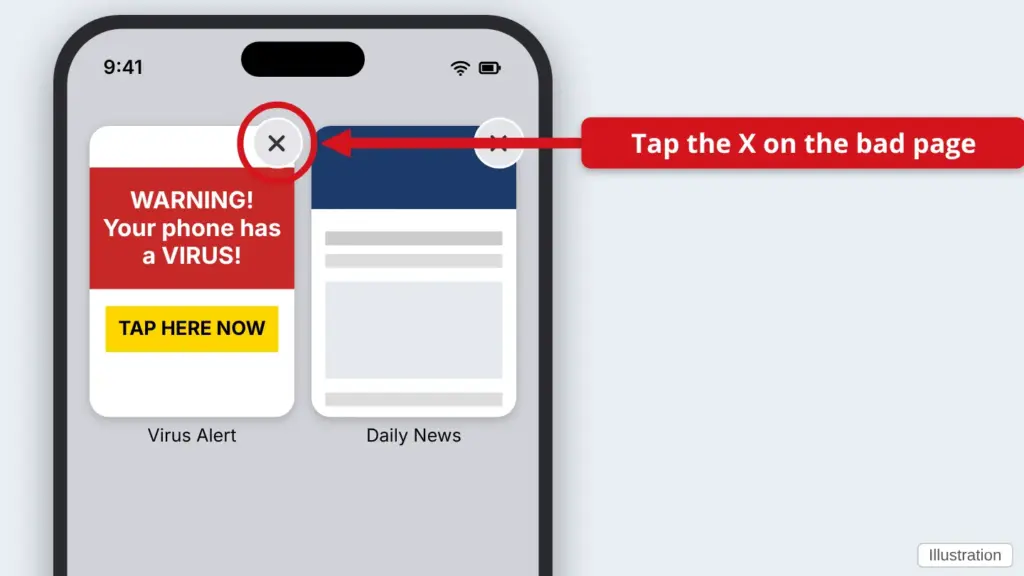
- Still stuck on it? Close the browser app completely: swipe up from the bottom and pause, then swipe the app away (iPhone), or tap the square or three-line button and swipe the app away (Android).
On an iPhone
- Open Settings and find Safari. On newer iPhones, scroll to Apps and tap Safari. On older iPhones, Safari is in the main Settings list.
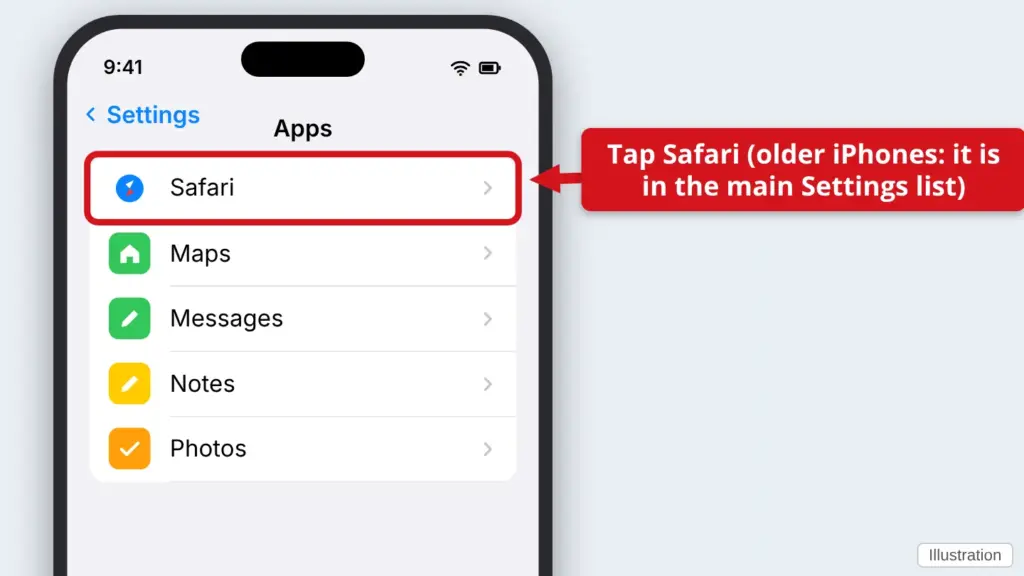
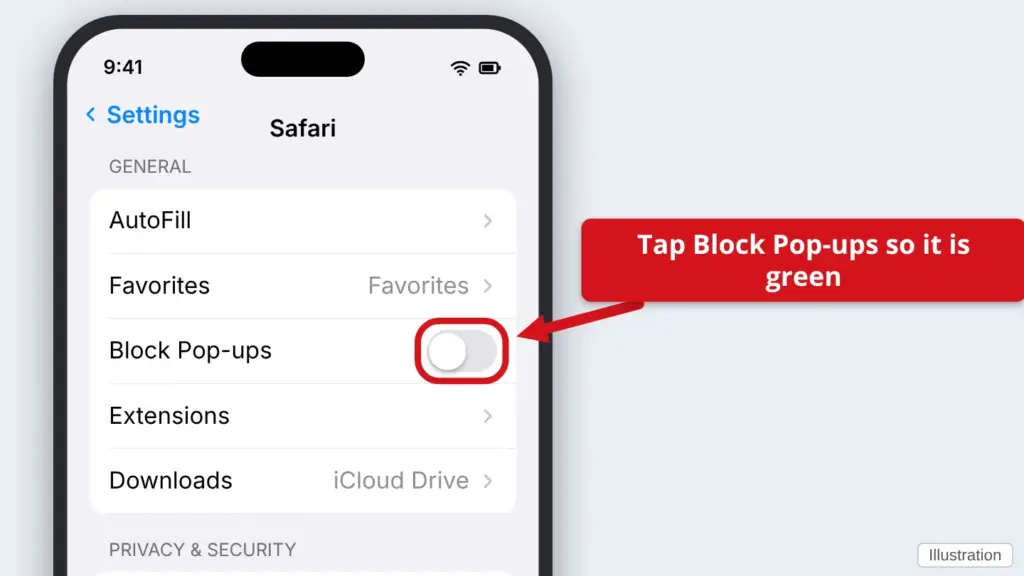
- Turn on Block Pop-ups. Tap the switch so it is green. Also make sure Fraudulent Website Warning is on.
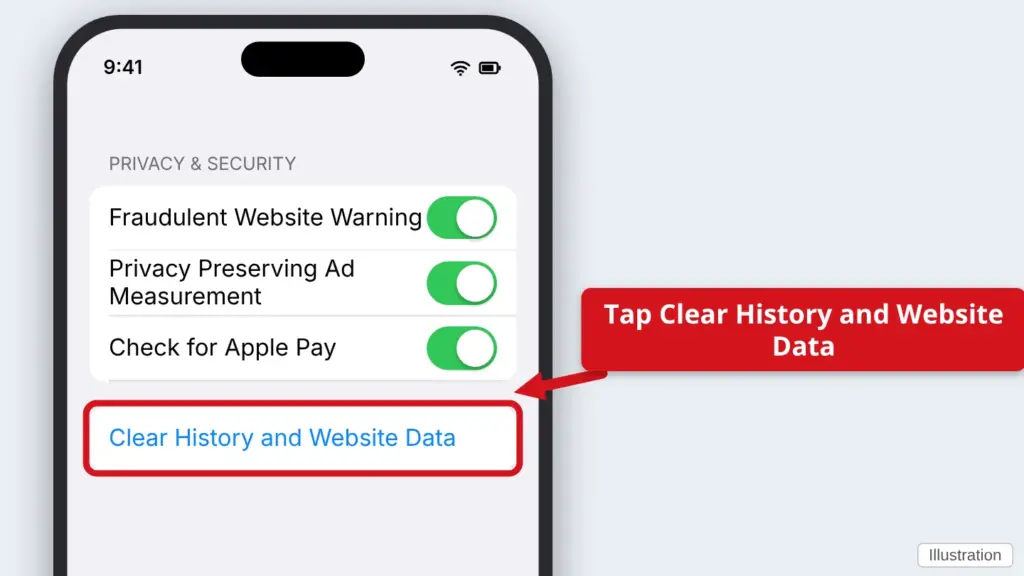
- Clear the junk Safari has saved. Scroll down and tap Clear History and Website Data, then confirm. You will be signed out of some websites.
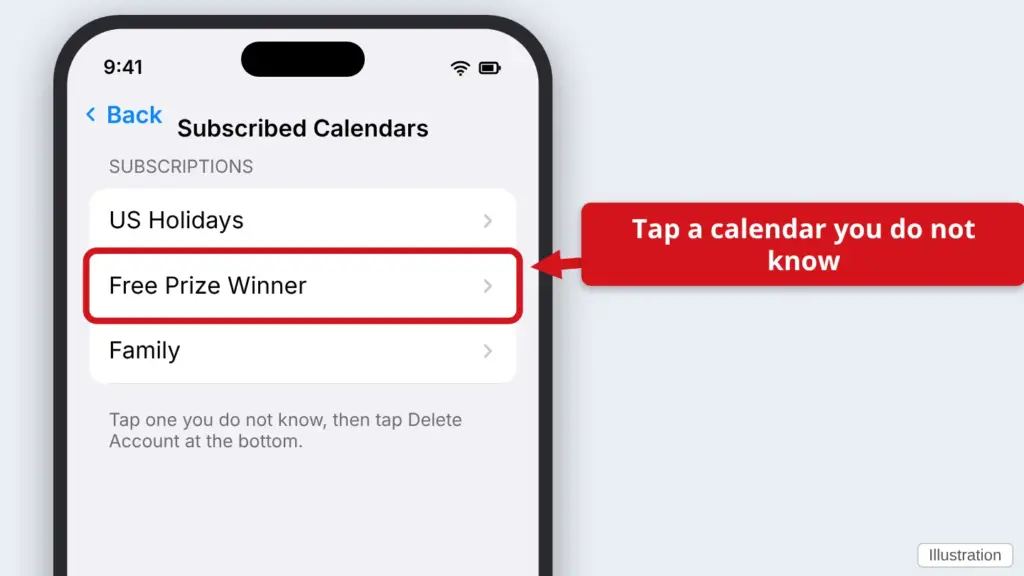
- Check for spam calendar invitations. If you see odd “virus” or “prize” alerts on your Calendar, open Settings → Calendar → Calendar Accounts → Subscribed Calendars (newer iPhones: under Apps). Tap any you do not know and tap Delete Account. If you do not see that list, skip this step.
On an Android phone
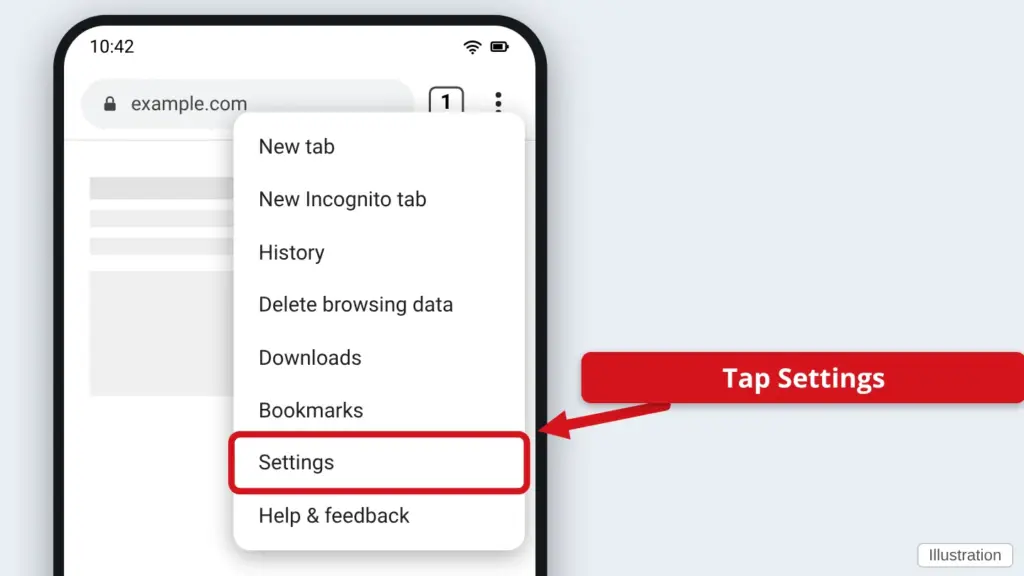
- Open Chrome and tap the three dots. They are at the top right (or bottom right on some phones). Tap Settings.
- Tap Site settings. It may be under Privacy and security on your phone.
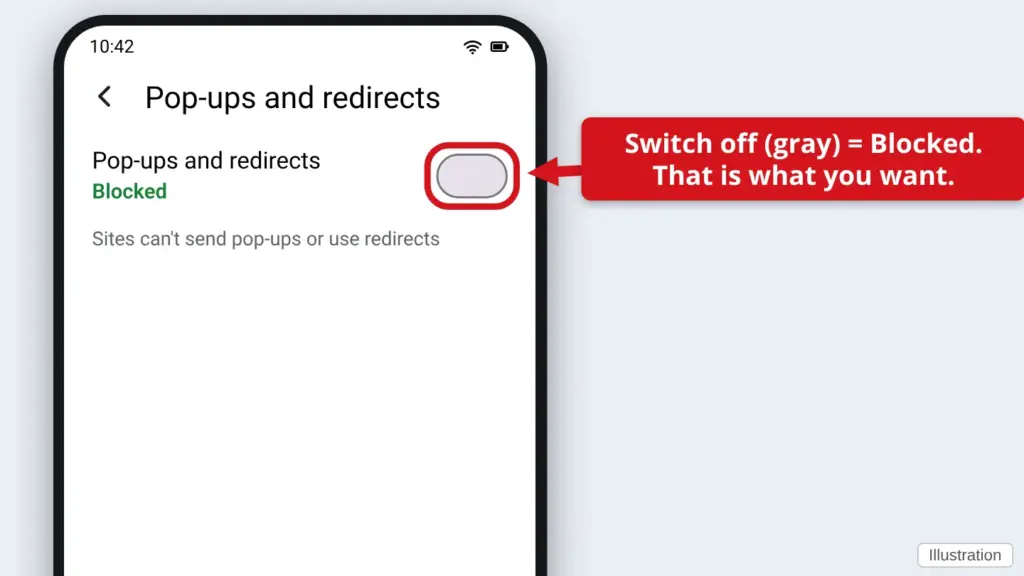
- Tap Pop-ups and redirects and make sure it is turned off. The switch should say Blocked or be gray.
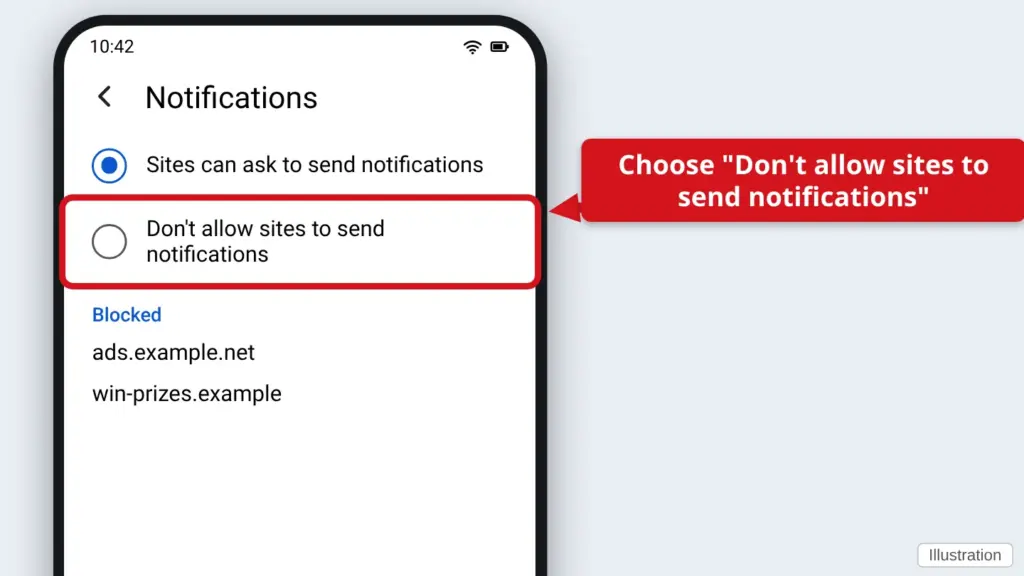
- Go back and tap Notifications. Turn on Don’t allow sites to send notifications. Look at the list below it, and block any website you do not know.
- Clear the junk Chrome has saved. Go back to the main Settings, tap Privacy and security → Delete browsing data, choose Cookies and site data and Cached images and files, then tap Delete data.
- Using another browser? In Samsung Internet, tap the three-line menu → Settings → Sites and downloads → Block pop-ups. Other browsers have a similar switch in their Settings.
Ads that appear when you are not in a browser
If ads pop up on your Home screen or over other apps, an app you installed is usually the cause.
- Look for apps you do not remember installing. Android: Settings → Apps, then tap the app and tap Uninstall. iPhone: press and hold the app icon, tap Remove App, then Delete App. Games, “cleaners,” flashlight and “battery saver” apps are the usual suspects.
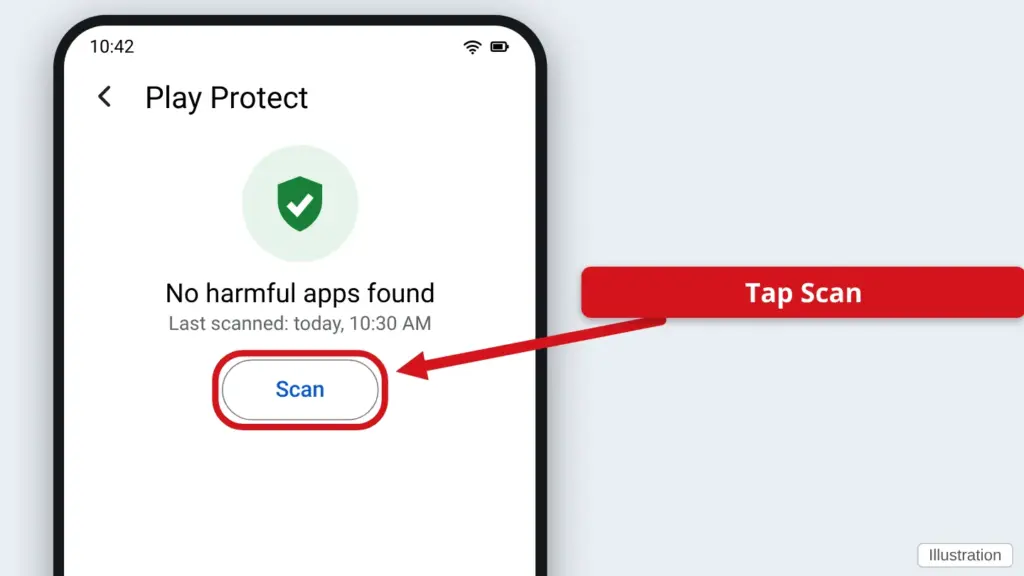
- Android only: scan with Google Play Protect. Open the Play Store, tap your picture at the top right, tap Play Protect, then Scan.
- Android only: block apps that draw over other apps. Go to Settings → Apps, tap the three dots or the gear, choose Special access (or Special app access), tap Display over other apps (or Appear on top), and turn it off for any app you do not trust.
Keep it from coming back: only install apps from the App Store or Google Play, read the reviews first, and tap Don’t Allow whenever a website asks to send you notifications.
Find this guide online: townlearn.com/stop-popups/
Still stuck? Call or text Town Tech: 863-288-0123 (Tue–Fri, 10 AM–4 PM)
Still stuck? Call or text Town Tech: 863-288-0123 (Tue–Fri, 10 AM–4 PM)