
Town Tech · Call or text 863-288-0123 · 217 Main Street, Auburndale, FL 33823
How to Connect to Wi-Fi (Windows 11, Android and iPhone)
Connect your computer or phone to your home Wi-Fi (wifi) in a few easy steps, on Windows 11, Android or iPhone.
Before you start: you need your Wi-Fi network name and password. They are usually on a sticker on your internet router (the box with blinking lights from your internet company). Look for words like Wi-Fi Password, Network Key or Security Key.
Jump to: Windows 11 computer Android phone iPhone If it will not connect
On a Windows 11 computer
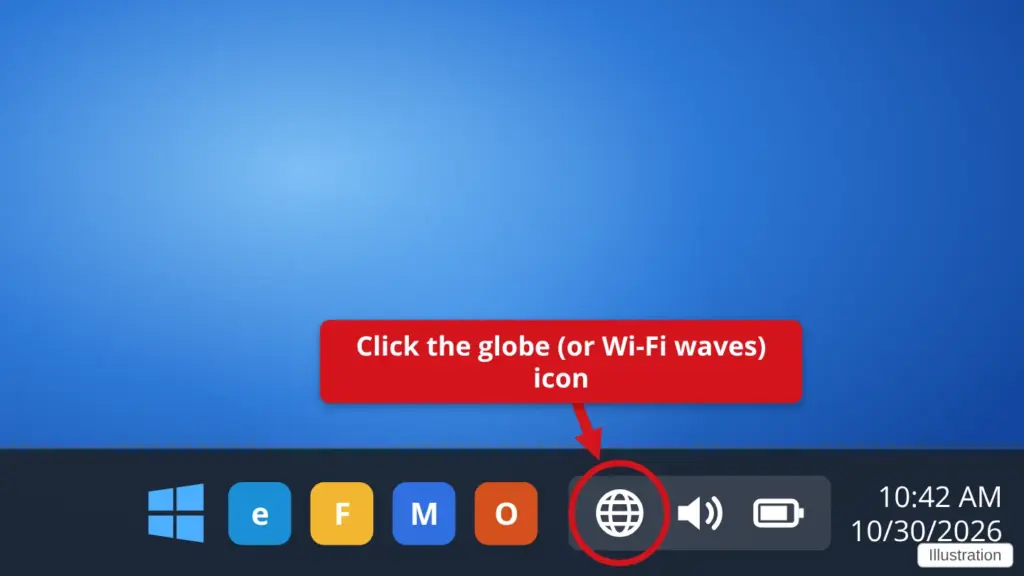
- Click the globe (or Wi-Fi waves) icon near the clock in the bottom-right corner. It sits next to the speaker and battery icons. A globe means the computer is not connected yet; Wi-Fi waves means Wi-Fi is already connected. On some computers it looks like a little computer screen.
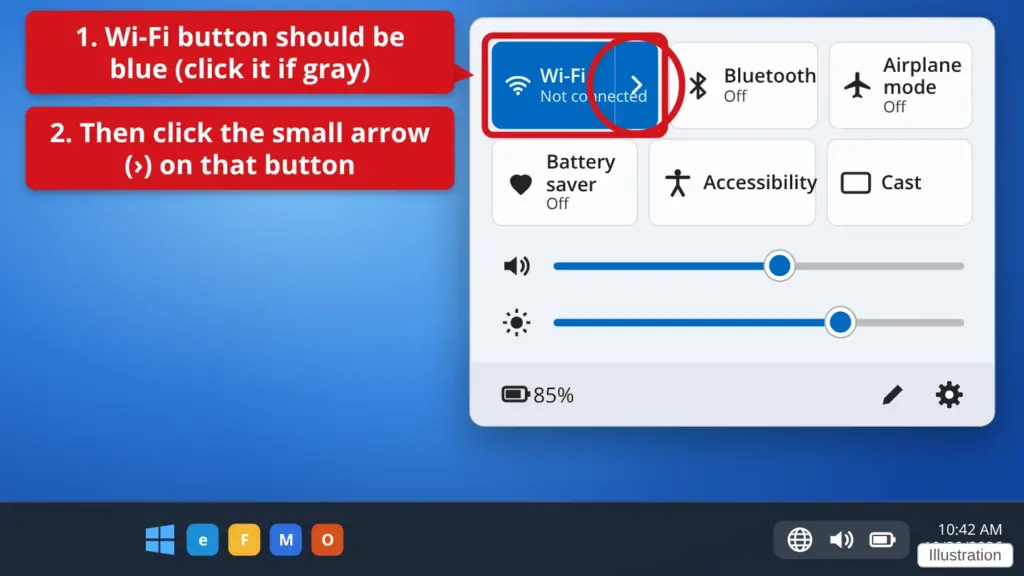
- Turn Wi-Fi on, then open the list. In the panel that pops up, click the Wi-Fi button if it is gray, so it turns blue. Then click the small arrow (›) next to it to see the networks. If it says Airplane mode is on, click it once to turn it off.
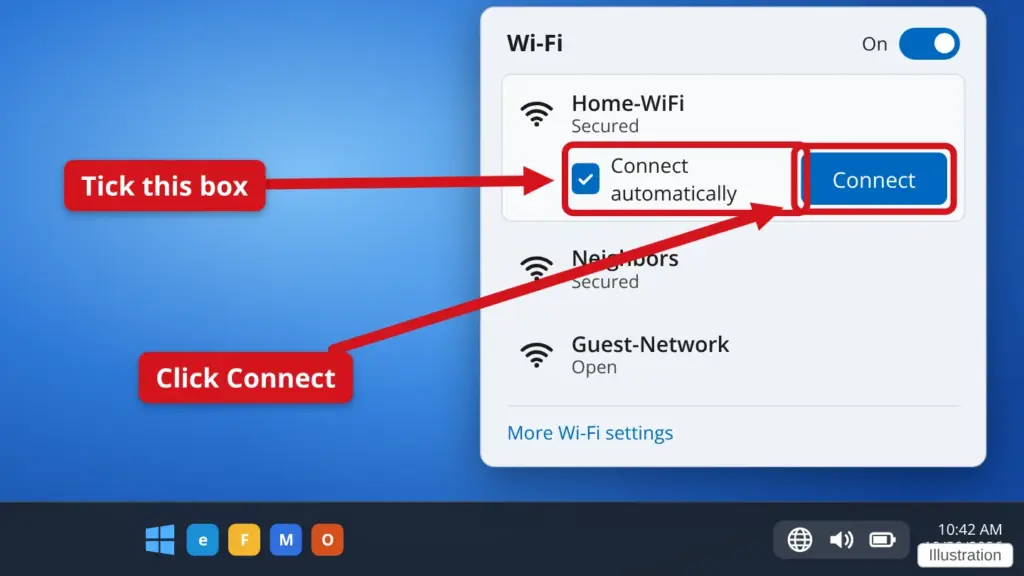
- Click your network name, then click Connect. Pick the name that matches the sticker on your router. Tick Connect automatically so it reconnects by itself next time.
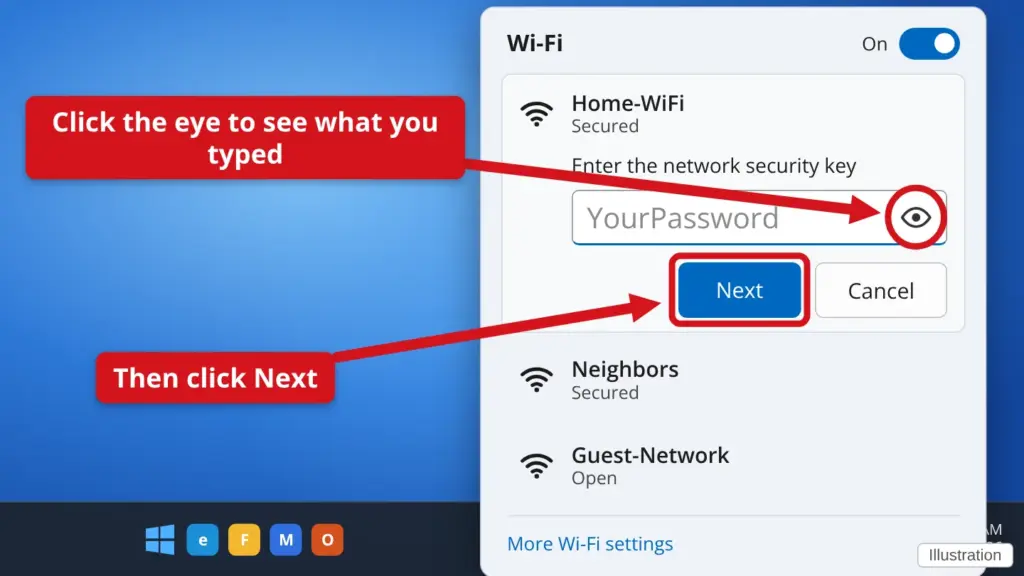
- Type your Wi-Fi password and click Next. Type it carefully – capital and small letters matter. The gray YourPassword in the picture is only an example. Type your own Wi-Fi password (it may show as dots as you type). Click the little eye icon to see what you typed.
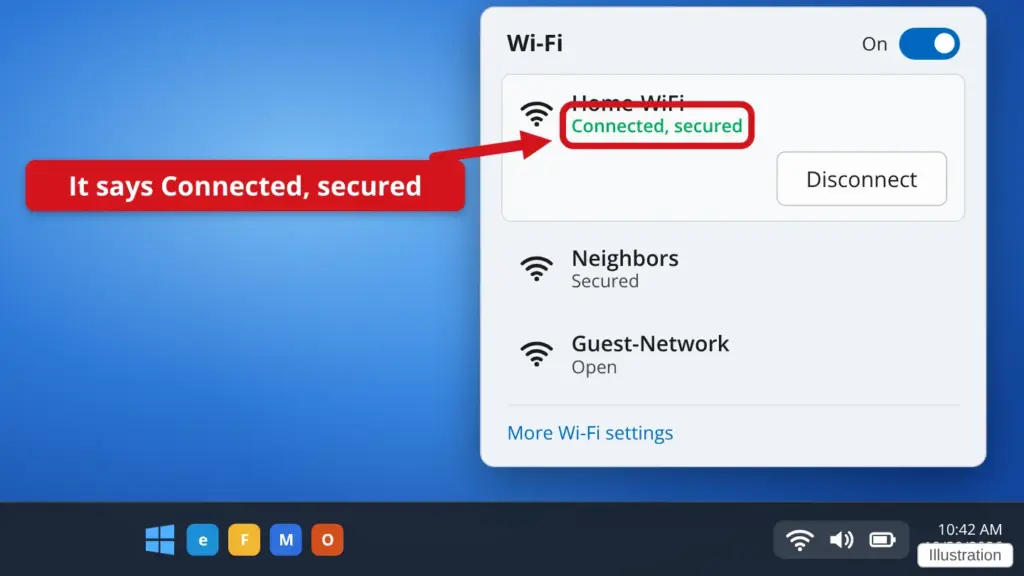
- Check that it worked. Under your network name you should see Connected, secured. Open a website like google.com to test it.
On an Android phone
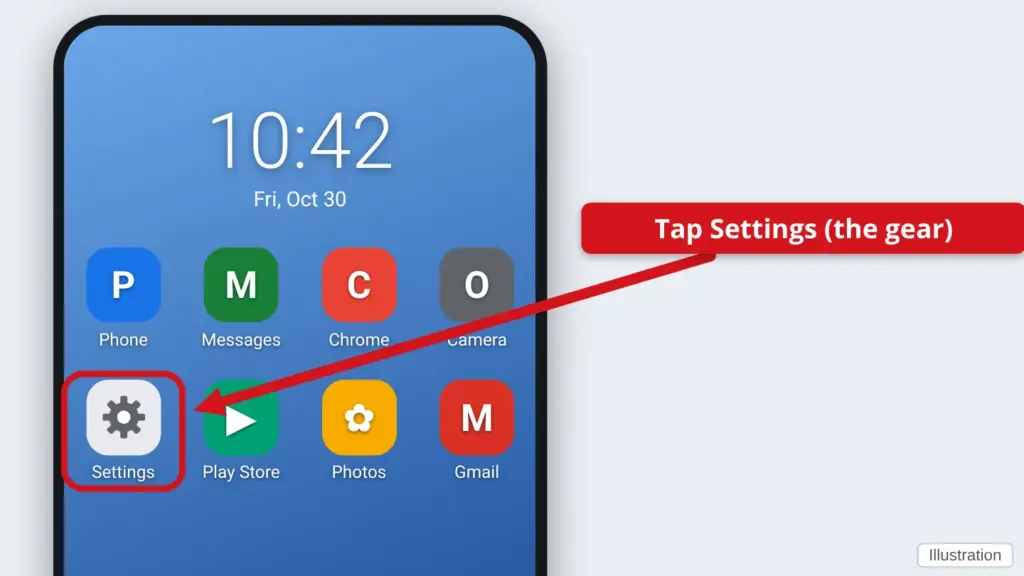
- Open Settings. Tap the gear icon. Or swipe down from the top of the screen, then press and hold the Wi-Fi icon to jump straight to step 3.
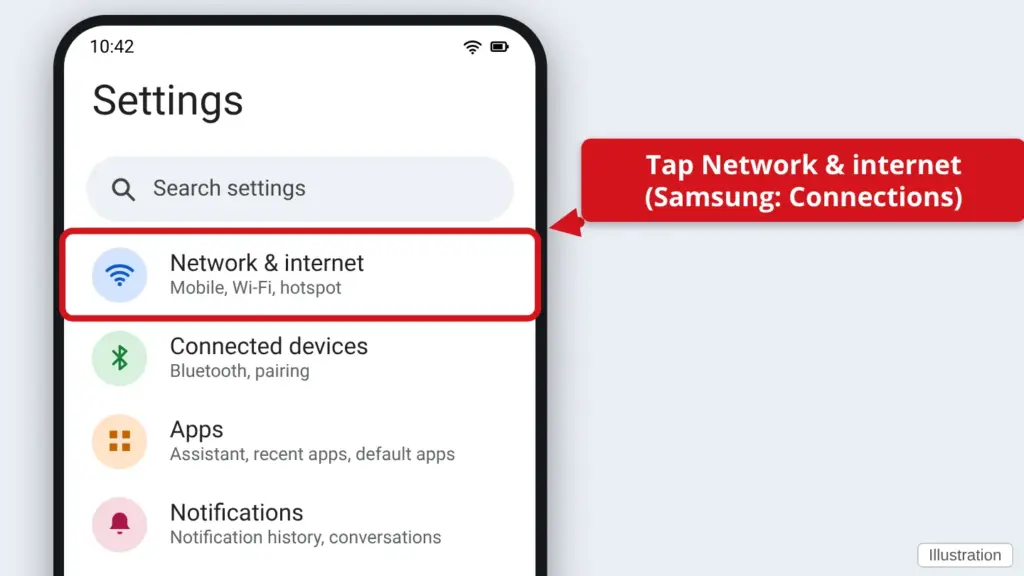
- Tap Network & internet (or Connections). Samsung phones call it Connections. Other phones call it Network & internet.
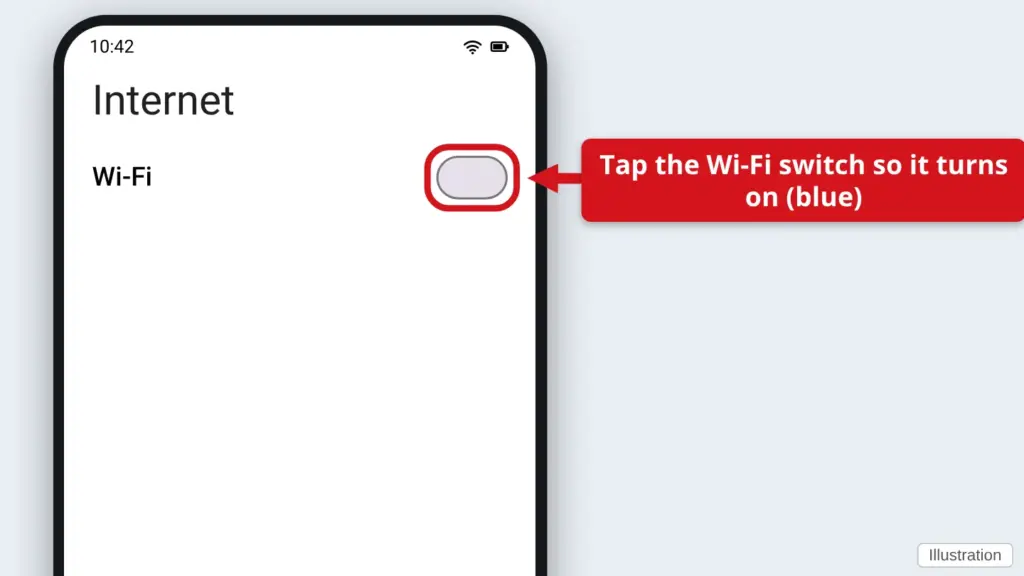
- Tap Internet (or Wi-Fi) and turn it on. On a Pixel phone this is called Internet; on a Samsung phone tap Connections then Wi-Fi. Tap the switch so it turns on (blue or green). A list of nearby networks appears.
- Tap your network name. Pick the name that matches your router sticker.
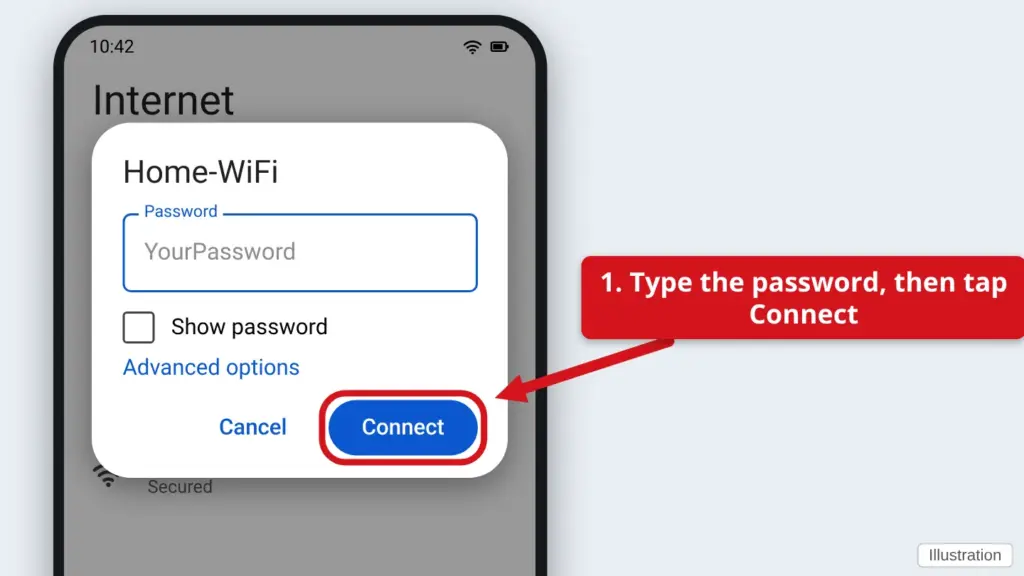
- Type the password and tap Connect. The gray YourPassword in the picture is only an example. Type your own Wi-Fi password (it may show as dots as you type). You may see Join instead of Connect. When it works, the word Connected appears under the network name.
On an iPhone
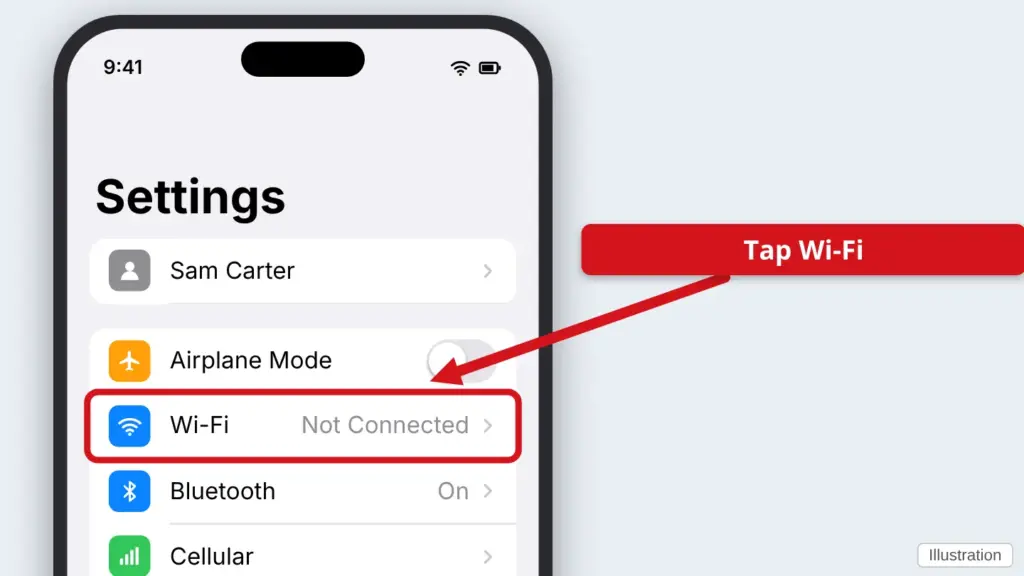
- Open Settings and tap Wi-Fi. Settings is the gray gear icon. Wi-Fi is near the top of the list.
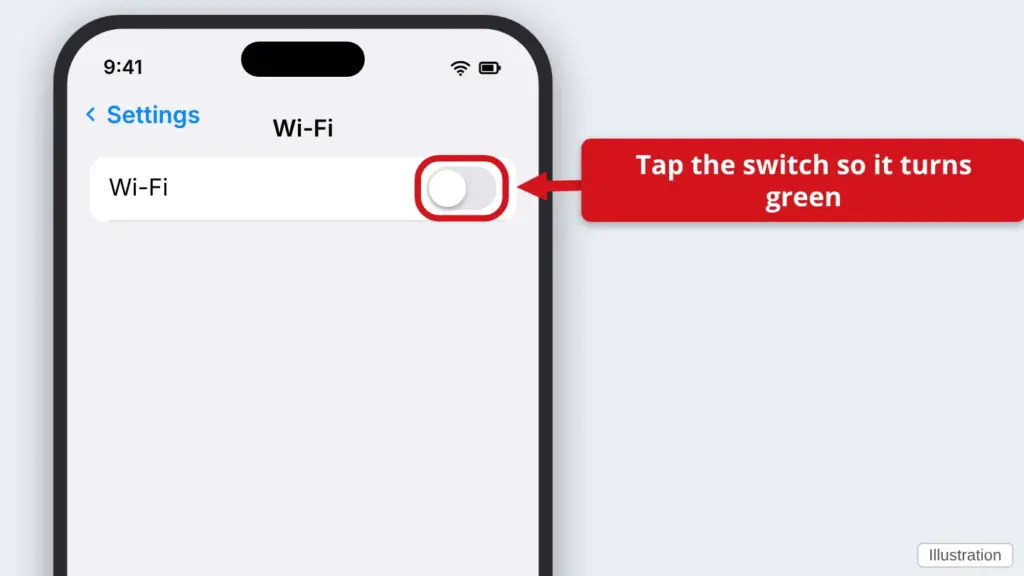
- Turn Wi-Fi on. Tap the switch at the top so it turns green. A list of networks then appears.
- Tap your network name. Look under Choose a Network and tap the name that matches your router sticker.
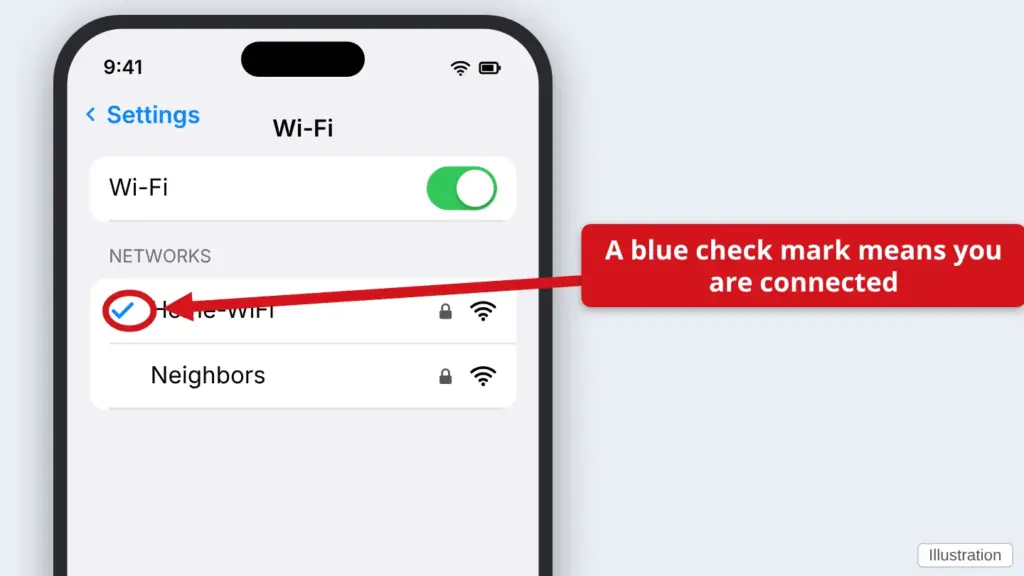
- Type the password and tap Join. Type your own Wi-Fi password (it may show as dots as you type). When it works, a blue check mark appears beside the network name, and the Wi-Fi symbol shows at the top of the screen.
If it will not connect
- Check the password. It is case sensitive. Try typing it again and look at it before you press Connect.
- Forget the network and start over. Windows: Settings → Network & internet → Wi-Fi → Manage known networks → Forget. Android: tap the network name and tap Forget. iPhone: tap the (i) beside the name and tap Forget This Network. Then connect again from step 1.
- Restart your router. Unplug its power cord for 30 seconds, plug it back in, and wait 3 minutes for the lights to settle.
- Restart your computer or phone and try once more.
- Do other devices connect? If nothing in the house can get online, the problem is probably your internet service. Call your internet company.
Find this guide online: townlearn.com/wifi/
Still stuck? Call or text Town Tech: 863-288-0123 (Tue–Fri, 10 AM–4 PM)
Still stuck? Call or text Town Tech: 863-288-0123 (Tue–Fri, 10 AM–4 PM)