
Town Tech · Call or text 863-288-0123 · 217 Main Street, Auburndale, FL 33823
How to Reset or Add a Windows Password or PIN
Add or change the password or PIN you use to sign in to your Windows 11 computer, and what to do if you forgot it.
Password or PIN? A password can be letters, numbers and symbols. A PIN is a short number (4 or more digits) that only works on this one computer. Many people find a PIN quicker to type.
Jump to: Add or change a PIN Add or change a password If you forgot it
Add or change a PIN
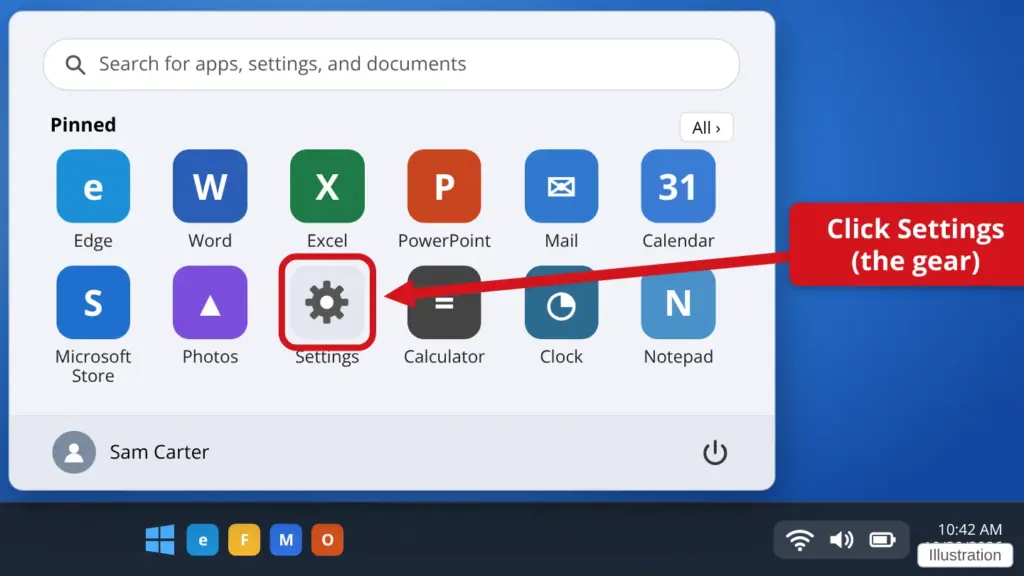
- Open Settings. Click the Start button (the Windows logo at the bottom), then click the gear icon named Settings.
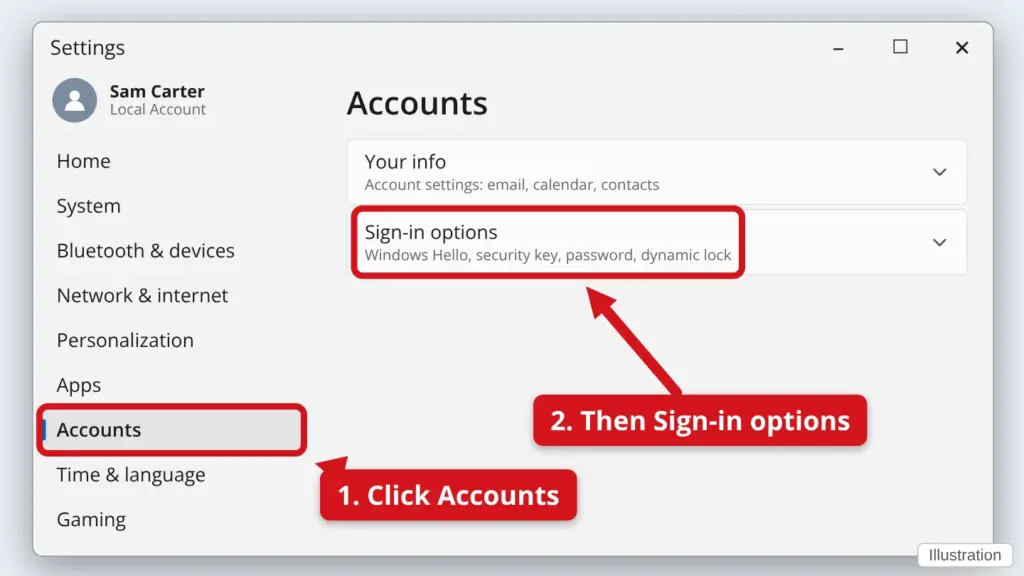
- Click Accounts, then Sign-in options. Accounts is in the list on the left.
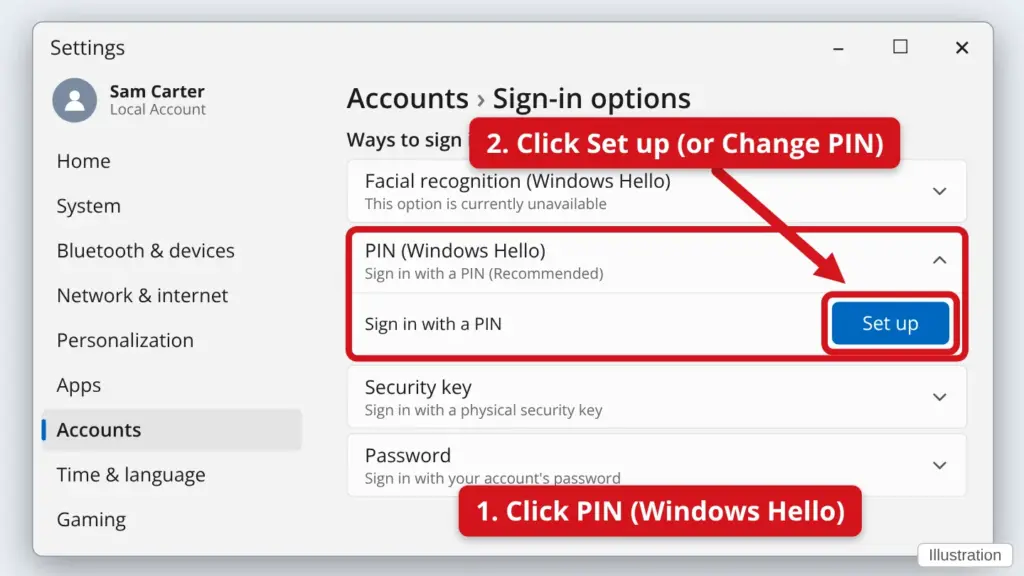
- Click PIN (Windows Hello). Then click Set up. If you already have a PIN, click Change PIN.
- Type your current password if it asks. Windows needs to know it is really you.
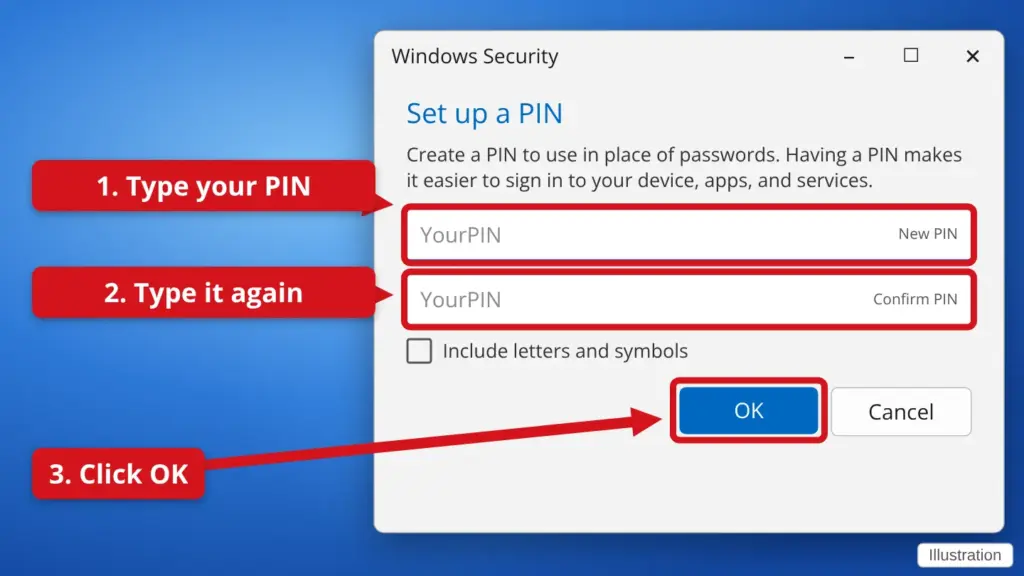
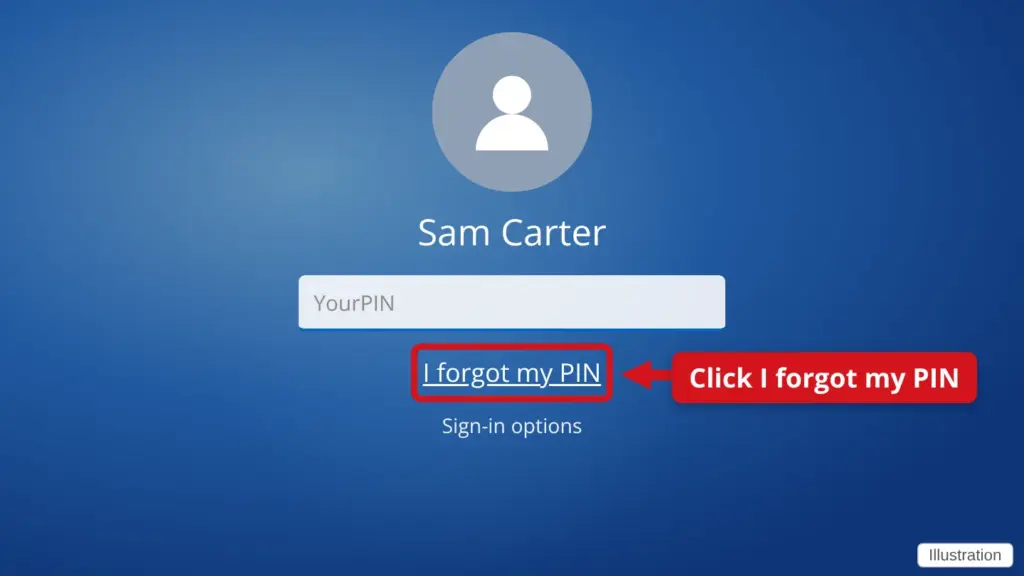
- Type your new PIN twice and click OK. The gray YourPIN in the picture is only an example. Type your own PIN (it may show as dots as you type). Pick something you will remember but others cannot guess. Do not use 1234 or a birthday. Write it down and keep the paper somewhere safe.
Add or change a password
- Find out which kind of account you have. Open Settings → Accounts → Your info. If you see an email address under your name, you use a Microsoft account. If it says Local account, it only lives on this computer.
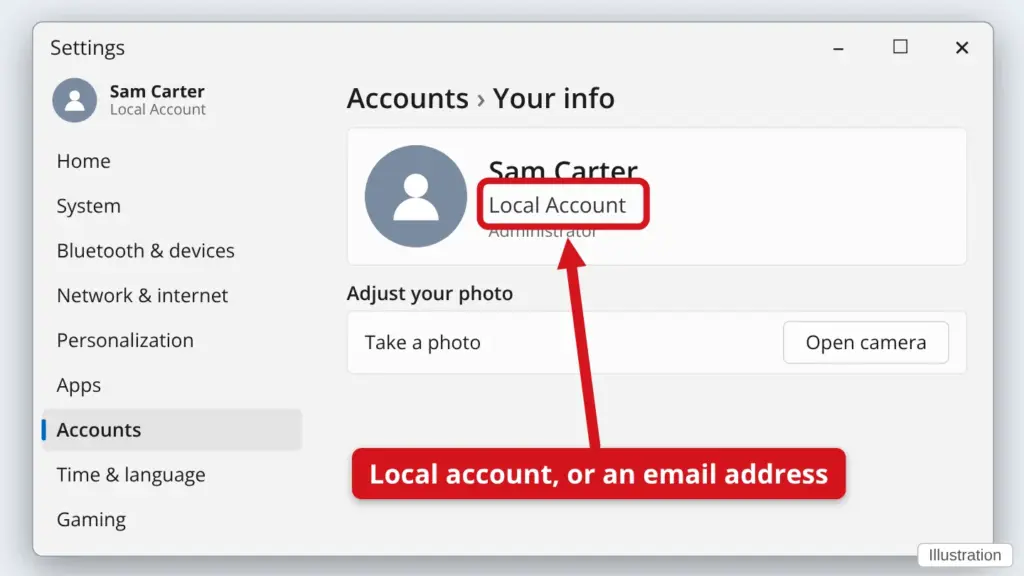
- Local account: open Sign-in options and click Password. Go to Settings → Accounts → Sign-in options → Password. Click Add (or Change).
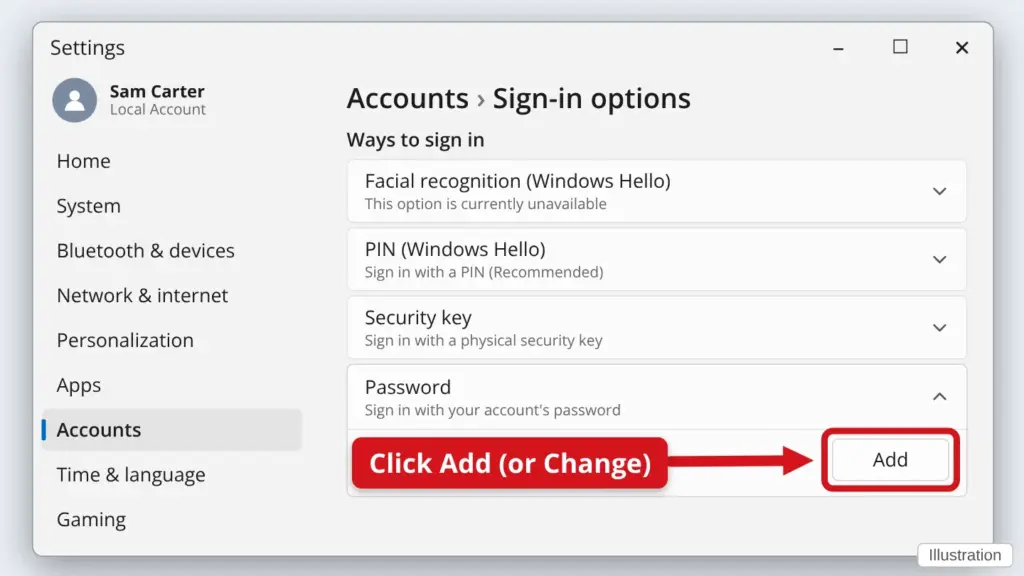
- Local account: type the new password twice and add a hint. Type your own new password (it may show as dots as you type). The hint helps you remember it later. Click Next, then Finish.
- Microsoft account: press Ctrl + Alt + Delete. Hold the Ctrl and Alt keys, tap Delete, then click Change a password. Type your own old password, then the new one twice (they may show as dots as you type).
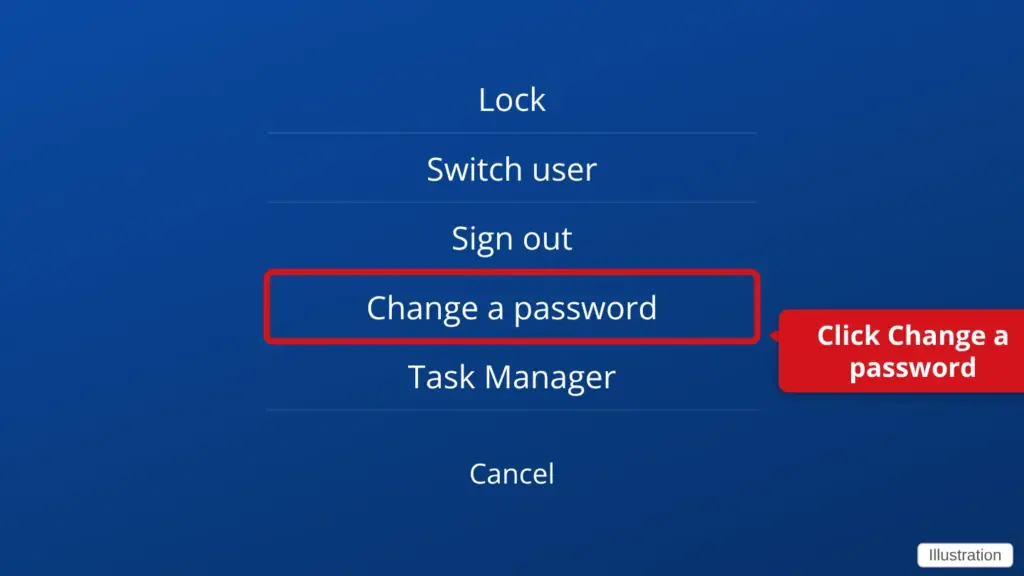
Do not see a Password option? Some Microsoft accounts hide it. To change a Microsoft account password, go to account.microsoft.com on any device, sign in, and choose Security → Change password.
If you forgot your PIN or password
- Forgot your PIN? On the sign-in screen, click I forgot my PIN under the PIN box. Windows will ask you to prove it is you with your Microsoft account password or a code sent to your email or phone. Then you can make a new PIN.
- Forgot a Microsoft account password? Follow our guide: How to get back into your Microsoft or Facebook account. Use another phone or computer if you must.
- Forgot a local account password? If you see a Reset password link below the password box, click it and answer your security questions. If there is no link, call us before you try anything else.
Be careful. Never pay for or download a “password cracker” and never call a phone number from a pop-up. Those are common scams. Call Town Tech instead.
Find this guide online: townlearn.com/windows-password/
Still stuck? Call or text Town Tech: 863-288-0123 (Tue–Fri, 10 AM–4 PM)
Still stuck? Call or text Town Tech: 863-288-0123 (Tue–Fri, 10 AM–4 PM)